DraftRank
All integration guides

// Integration guide

How to connect Webflow

DraftRank creates CMS items in your Webflow blog collection through the v2 Data API. You need two things: an API token with CMS access and the collection's ID. DraftRank reads the collection and matches your field slugs itself, so the slug boxes can stay empty.

About 3 minutes Easy

Before you start

  • A Webflow site with a CMS collection for blog posts, containing a rich-text field for the body.
  • Site administrator access — only admins can generate a site API token.
  • A Site plan that serves CMS collection pages, if you want published posts to be visible on your site. Webflow's free Starter plan creates CMS items but does not serve collection pages, so posts stay invisible until you upgrade.

Step by step

  1. 1

    Open your site's Apps & Integrations settings

    In the Webflow dashboard, open the site you publish from and choose “Apps & Integrations” in the left sidebar. Scroll to the bottom of that page, to the API access section.

    The API access section of Webflow's Apps & Integrations settings, with the Generate API token button.
  2. 2

    Generate an API token

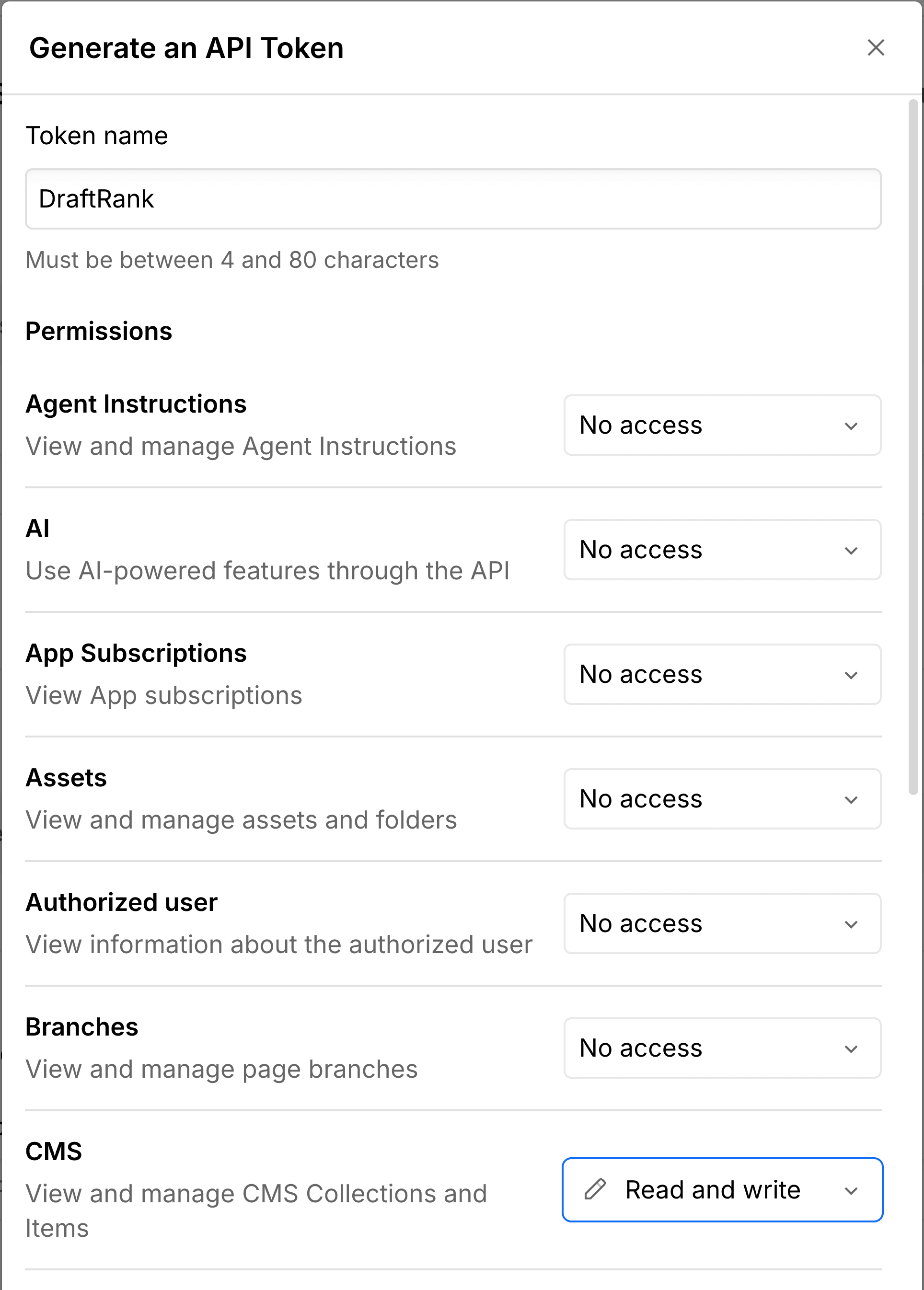
    Press “Generate API token” and name it DraftRank. Set CMS to “Read and write” — that one scope is all DraftRank needs. Leave every other permission on “No access”.

    CMS: Read and write
    Webflow's Generate an API Token dialog, named DraftRank, with CMS set to Read and write and every other permission on No access.

    Copy the token before you close the dialog: Webflow shows it exactly once, and a token goes stale after 365 consecutive days without use. Cover images need no extra scope — Webflow imports them for you.

  3. 3

    Copy your collection ID

    Open the Webflow Designer, switch to the CMS panel, select the collection you publish blog posts into and press Settings. The collection ID sits at the top, with a copy button beside it.

    GET https://api.webflow.com/v2/sites/{site_id}/collections
    Webflow's Collection Settings panel showing the Collection ID field with a copy button next to it.

    If you would rather not open the Designer, this API call lists every collection on the site with its id.

  4. 4

    Check the collection has the fields you want filled

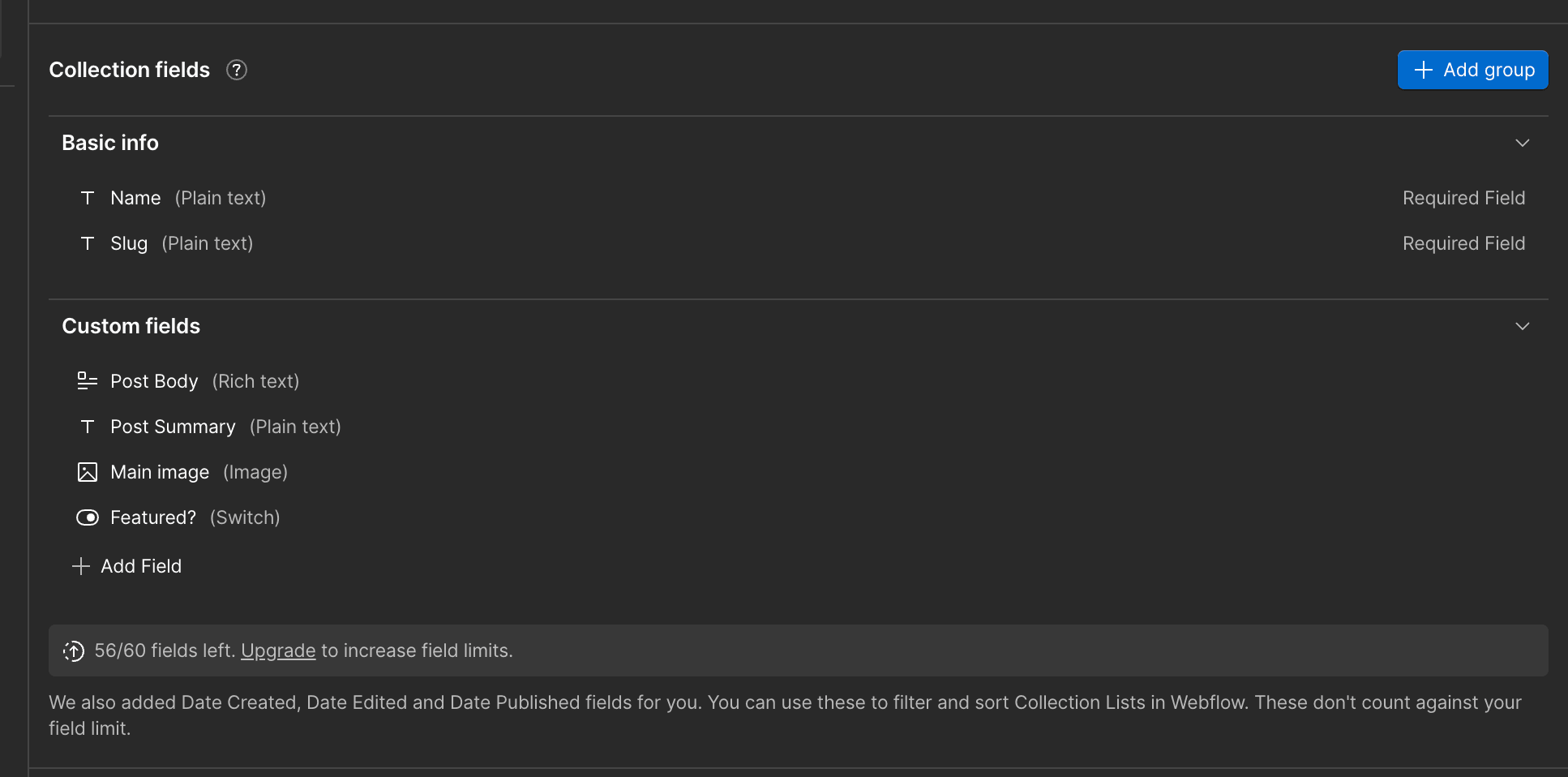
    In the same settings panel, look at Collection fields. DraftRank writes the article into the rich-text field, the meta description into a plain-text field, the cover into an image field, and flips a switch field when a post is marked as featured. Anything the collection doesn't have is simply skipped — only the rich-text body is required.

    The Collection fields list for a Webflow blog collection: Name and Slug under Basic info, then Post Body (Rich text), Post Summary (Plain text), Main image (Image) and Featured? (Switch).

    You don't have to write these slugs down. DraftRank reads the collection and matches them itself; the slug boxes in the connect dialog are only an override.

  5. 5

    Add Webflow as a destination in DraftRank

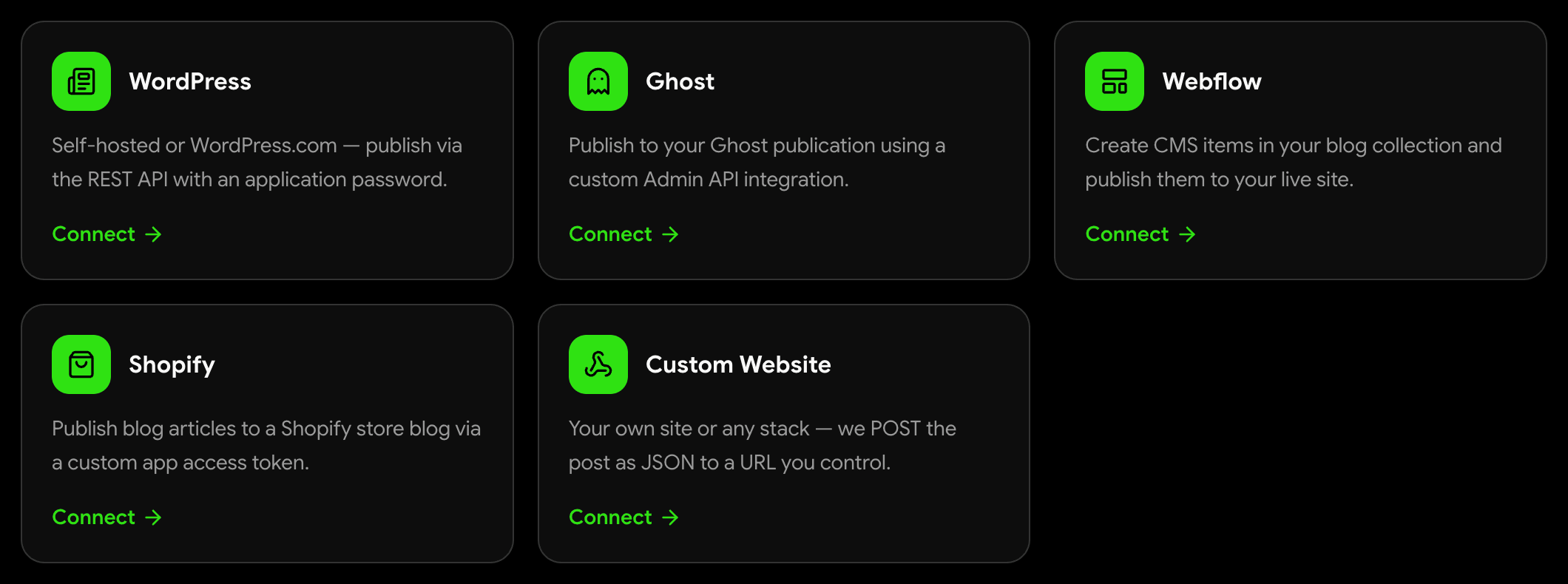
    In DraftRank, open your website, go to the Integrations tab and press Connect on the Webflow card.

    DraftRank's Add a destination screen showing cards for WordPress, Ghost, Webflow, Shopify and Custom Website.
  6. 6

    Paste the token and collection ID

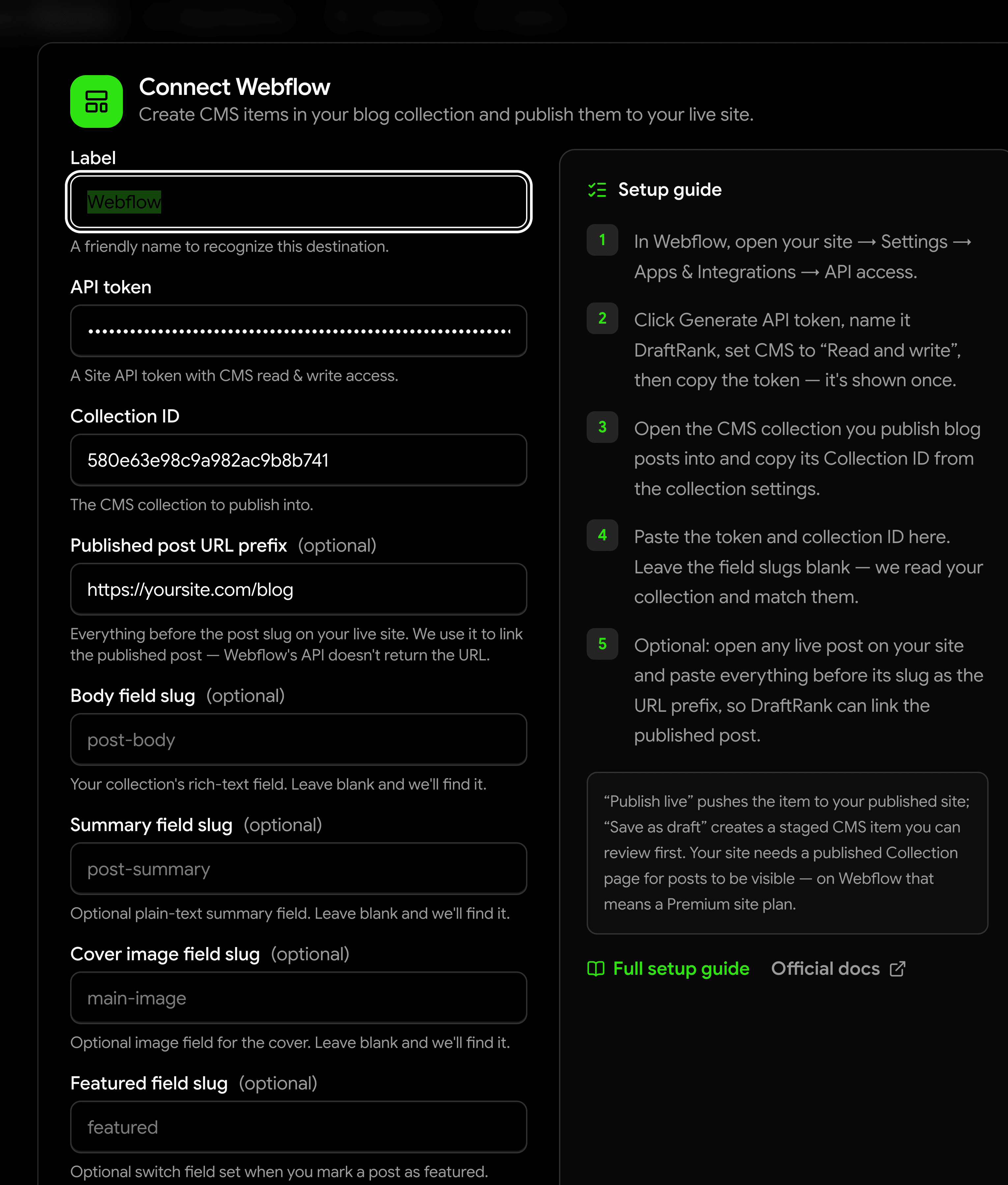
    Enter the API token and the collection ID, then press Test & connect. Leave the four field-slug boxes empty. Optionally paste a URL prefix: open any live post on your site, copy everything in front of the post's own slug, and put that here so DraftRank can link the published post.

    DraftRank's Connect Webflow dialog with the API token masked, a collection ID filled in, a published post URL prefix of https://yoursite.com/blog, and the four optional field slug boxes left empty.

    The connection test resolves the body field too, so a wrong collection ID — or a collection with no rich-text field — is reported here rather than on your first publish.

  7. 7

    Confirm the destination is connected

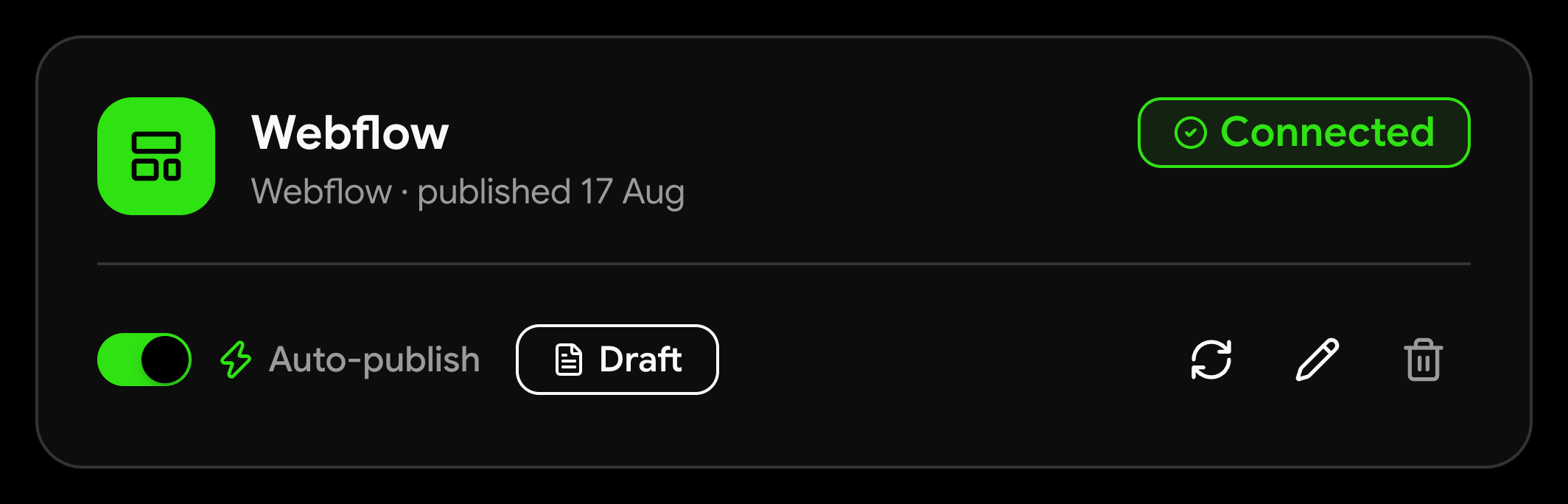
    The destination moves to the Connected tab and shows “Connected”. Choose whether new posts go out as a draft or live, and switch on Auto-publish if you want every generated post pushed to Webflow without asking.

    A connected Webflow destination in DraftRank, marked Connected, with the auto-publish toggle on and the publish mode set to Draft.
  8. 8

    Publish a post and check it in Webflow

    Open an article and press Publish. “Save as draft” creates a staged CMS item you can review in the Webflow editor first; “Publish live” pushes it straight to the published site. Open the item in Webflow's CMS and you should see the body, the summary, the cover image on your own site assets, and the featured switch set if you ticked “Mark as featured”.

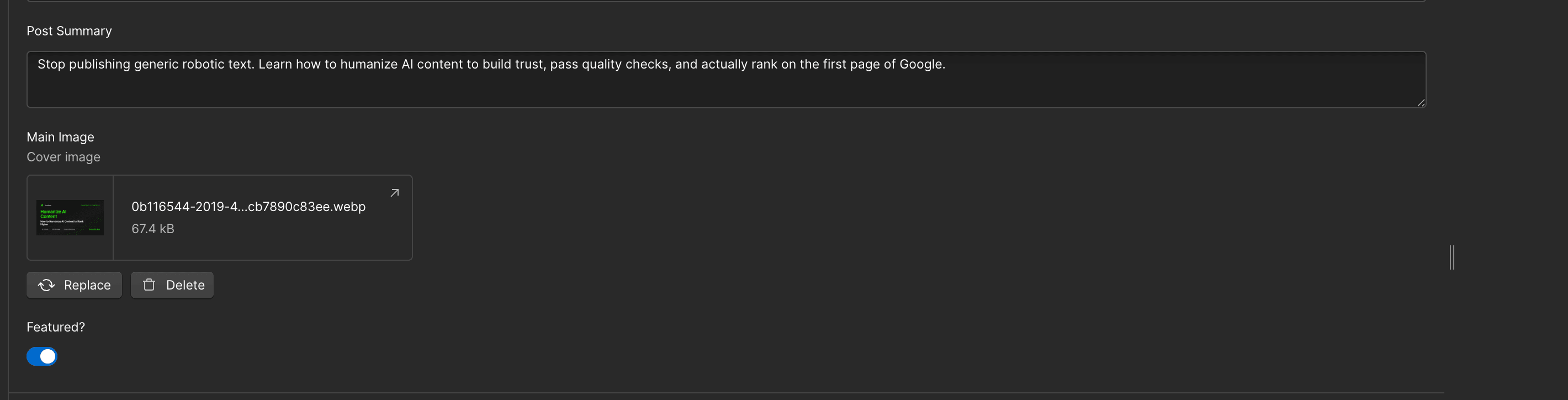
    A DraftRank article open in Webflow's CMS editor: Post Summary filled with the meta description, Main Image holding the uploaded cover file, and the Featured? switch turned on.

What goes in each field

These labels match the connect dialog exactly, so you can read this next to the form.

FieldWhat to enterExample
API tokenThe site API token you generated, with CMS read and write scope.
Collection IDThe ID of the CMS collection that holds your blog posts.5f…
Published post URL prefixoptionalEverything in front of the post slug on your live site. Only used to build the “View” link — Webflow's API doesn't return the URL.https://yoursite.com/blog
Body field slugoptionalThe rich-text field the article body is written into. Leave blank to let DraftRank find it.post-body
Summary field slugoptionalA plain-text field that receives the meta description. Leave blank to let DraftRank find it.post-summary
Cover image field slugoptionalThe image field the cover is written into. Leave blank to let DraftRank find it.main-image
Featured field slugoptionalA switch field set when you tick “Mark as featured”. Leave blank to let DraftRank find it.featured

If something goes wrong

Find the message DraftRank showed you. Each one has a specific cause.

Webflow: set “Body field slug” to one of this collection's rich-text fields — …

Why: The slug in the “Body field slug” box isn't a rich-text field in this collection. The message lists the slugs that are.

Fix: Clear the box so DraftRank picks the field itself, or paste one of the slugs from the message. Note it is the slug, not the label — a field labelled “Post Body” has the slug post-body.

Webflow: this collection has no rich-text field, so there is nowhere to put the article body.

Why: The collection ID points at a collection with no rich-text field.

Fix: Either you have the wrong collection ID, or the collection genuinely needs a rich-text field — add one in the Designer (Webflow's blog template calls it “Post Body”) and test again.

Authentication failed … Double-check your credentials.

Why: The token lacks the CMS scope, belongs to a different site, or has gone stale after a year of disuse.

Fix: Generate a fresh token on the correct site with CMS set to “Read and write”, and paste it again. Confirm the collection ID belongs to that same site.

Webflow: HTTP 404

Why: The collection ID is wrong, or it belongs to a site the token cannot see.

Fix: List your collections with the API call in step 3 and copy the id of the correct collection from the response.

Webflow: Validation Error … Required field is missing

Why: The collection has required fields DraftRank doesn't fill — an author reference or a date, for example.

Fix: Make those fields optional in the collection settings, or give them defaults, so an item can be created from the title, slug, body, summary and cover image alone.

The post is in the Webflow CMS but nothing appears on the site

Why: Either it went out as a draft, or your site has no published Collection page for that collection — which is the case on Webflow's free Starter plan.

Fix: Drafts are staged for review by design; choose “Publish live” to push to the published site. If a live item still shows nothing, open the collection's Collection page in the Designer and publish the site — and check your Site plan, because Starter serves no CMS collection pages at all.

The “View” link is missing, or opens the wrong page

Why: The URL prefix is empty, or doesn't match your Collection page's real path.

Fix: Open a post on your live site and copy everything before its slug into “Published post URL prefix”. Webflow's Collection page path is often /blog even when the collection is called something else, so copy it rather than guessing.

Webflow FAQ

Do I have to fill in the field slugs?

No. DraftRank reads your collection before every publish and matches the fields itself: the rich-text field for the body, a plain-text field for the summary, an image field for the cover and a switch for “featured”. The slug boxes are an override for collections that have several fields of the same kind and where DraftRank picks the wrong one.

Where exactly is the collection ID?

In the CMS collection's settings within the Designer. If your Webflow version doesn't surface it, the API call in step 3 returns every collection on the site with its id, which is the reliable route.

Does the cover image get uploaded?

Yes. The cover is written to your collection's image field with the post title as its alt text, and Webflow imports the file onto your own site assets rather than hot-linking ours. Images inside the article body are imported the same way. If your collection has no image field, the post still publishes without a cover.

Why doesn't DraftRank show a link to the published post?

Webflow's Data API doesn't return a public URL when it creates an item, and the path can't be inferred — it comes from your Collection page's slug in the Designer, which is often /blog regardless of what the collection is called. Paste that prefix into the destination settings and DraftRank builds the link from it and the slug Webflow assigned.

What happens if a post's slug is already taken?

Webflow appends a short suffix rather than rejecting the item, so “my-post” becomes something like “my-post-b9d0c”. DraftRank stores the slug Webflow actually assigned, so the recorded link points at the real post.

I published live but the post isn't on my site. Why?

A CMS item is only visible where your site has a published Collection page for that collection. Webflow's free Starter plan creates and stores CMS items but doesn't serve collection pages, so posts stay invisible until the site is on a plan that includes them. Nothing is lost in the meantime — the items are in your CMS and appear once the page exists.

Can I publish into more than one collection?

Yes — add the destination twice with different collection IDs. Each destination is configured and tested independently.

Webflow documentation

Ready to connect Webflow?

Open your site in DraftRank, go to the Integrations tab, and follow the steps above.

Open DraftRank