DraftRank
All integration guides

// Integration guide

How to connect Ghost

DraftRank publishes to Ghost through the Admin API, using a custom integration you create in Ghost Admin — no plugin, and the Admin API key is signed into a short-lived token for each request rather than being sent as-is. Posts arrive with their formatting and slug intact, the cover set as the feature image, the article's category as the primary tag, and the excerpt filled from the meta description.

About 4 minutes Easy

Before you start

  • A Ghost publication you administer — Ghost(Pro) or self-hosted. Verified against Ghost 6; Ghost 5 works too.
  • Owner or Administrator access, since only those roles can add an integration.
  • Your admin domain, which on Ghost(Pro) may be a *.ghost.io address rather than your custom domain.
Step by step

  1. 1

    Open Integrations in Ghost Admin

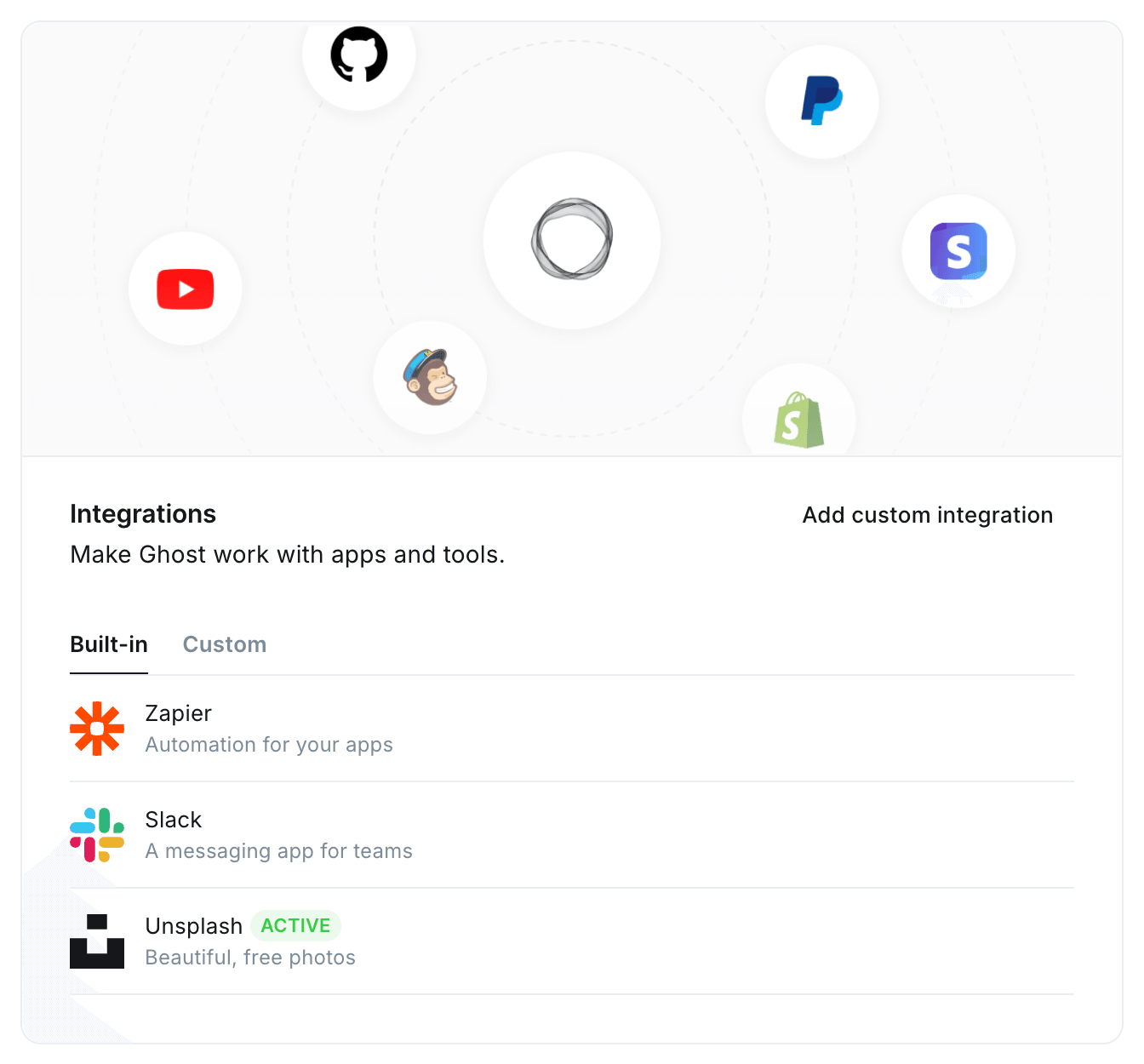
    Go to Settings and open the Integrations screen — the quickest route is the settings search box, where typing “integrations” jumps straight there. Press “Add custom integration” and name it DraftRank.

    The Integrations screen in Ghost Admin, with the Add custom integration action and the Built-in and Custom tabs.

    On older Ghost versions the path is Settings → Advanced → Integrations. Both land on the same screen.

  2. 2

    Copy the Admin API Key — not the Content API Key

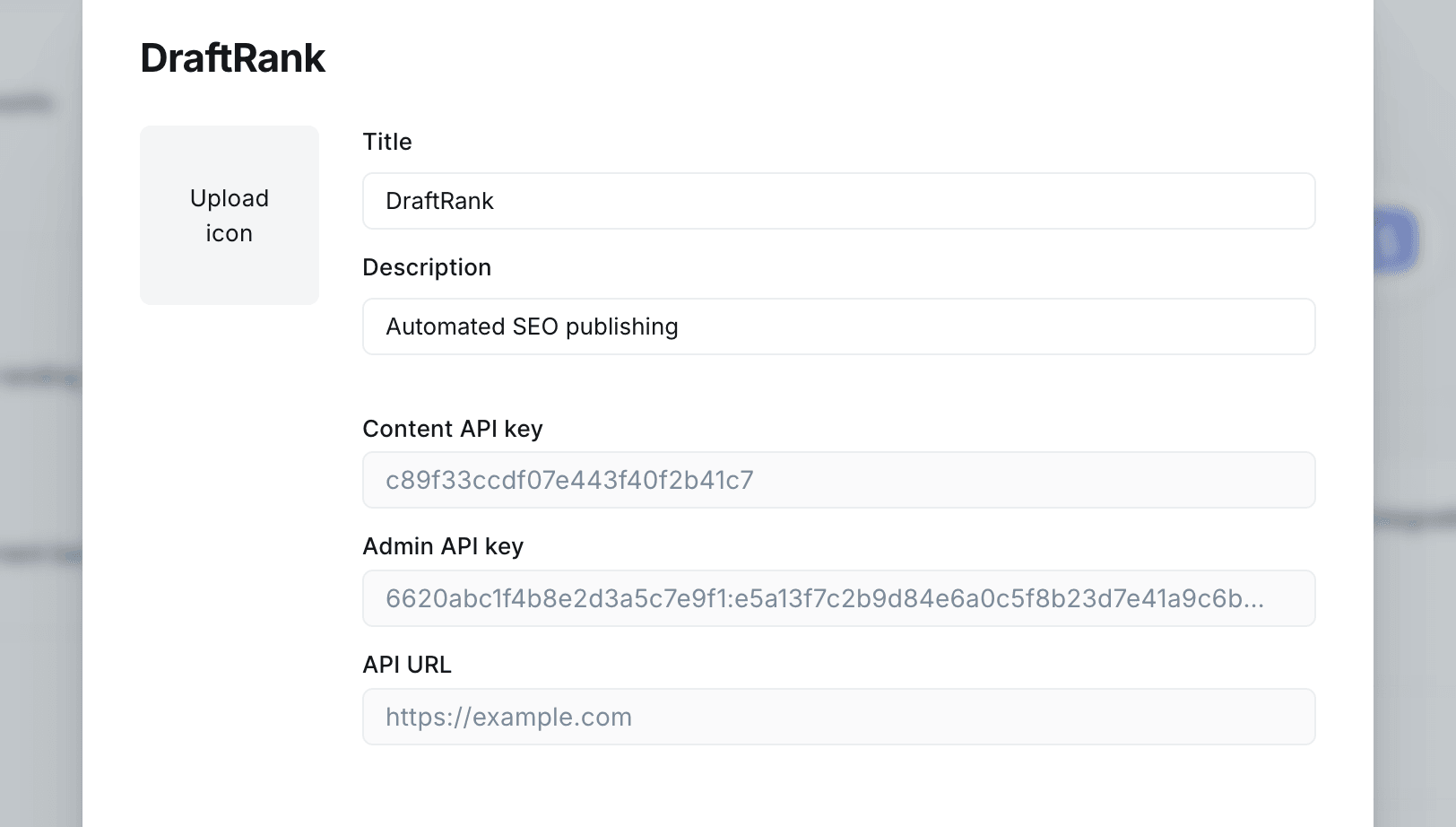
    Your new integration shows three values. You want the Admin API Key: two hex strings joined by a colon. Copy the API URL from the same screen as well — that is your Ghost site URL.

    A custom Ghost integration named DraftRank showing its Content API key, Admin API key and API URL.

    This is the single most common Ghost mistake. The Content API Key is one plain string with no colon and is read-only — it cannot create posts, so a connection made with it fails.

  3. 3

    In DraftRank, open Integrations → Add a destination

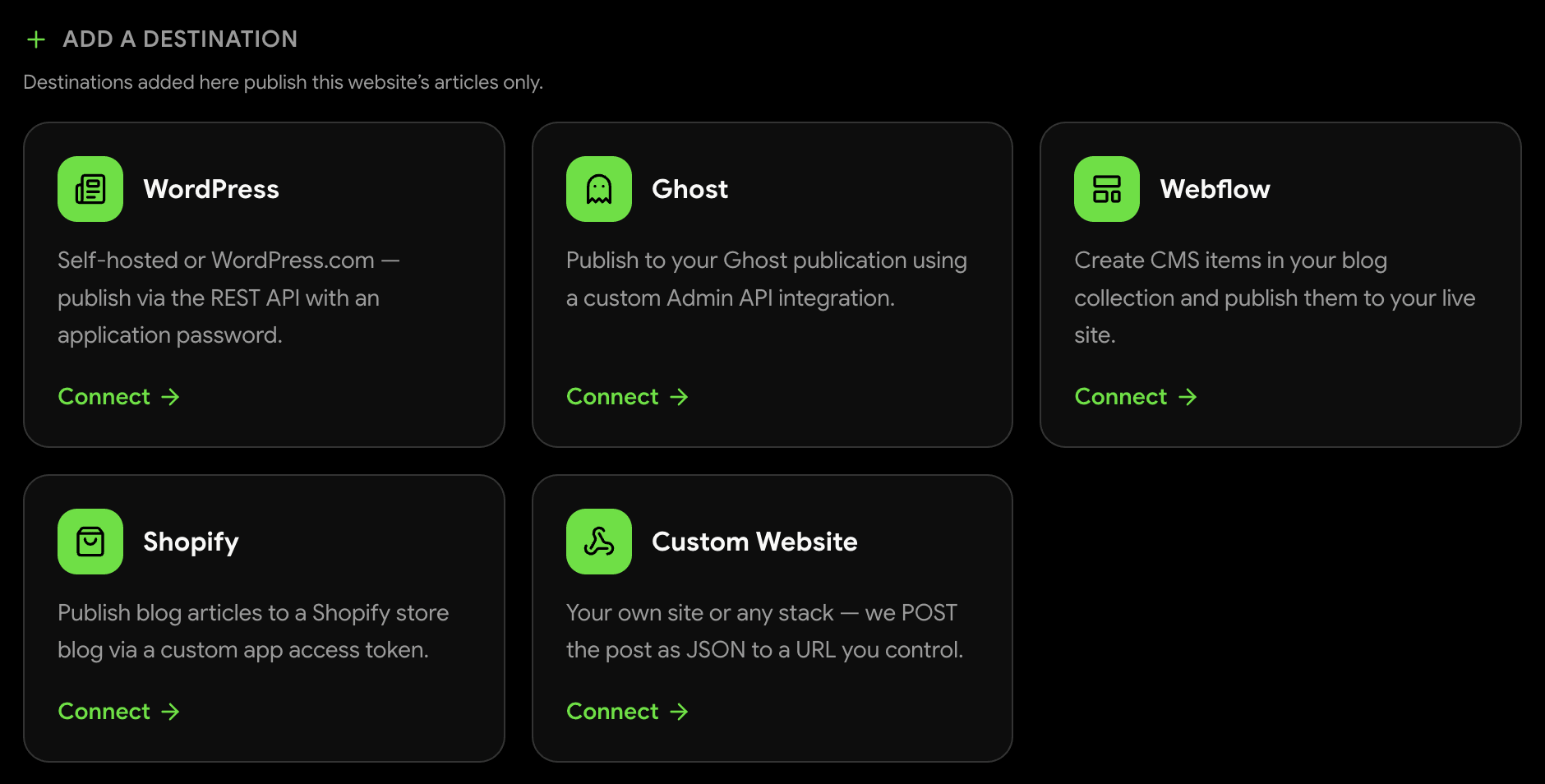
    Switch to DraftRank, open the site you want to publish from, go to the Integrations tab and press Connect on the Ghost card.

    DraftRank's Add a destination screen showing cards for WordPress, Ghost, Webflow, Shopify and Custom Website.

    Destinations belong to one site. If you publish for several brands, add the destination under the site whose articles should go there.

  4. 4

    Paste both values and press Test & connect

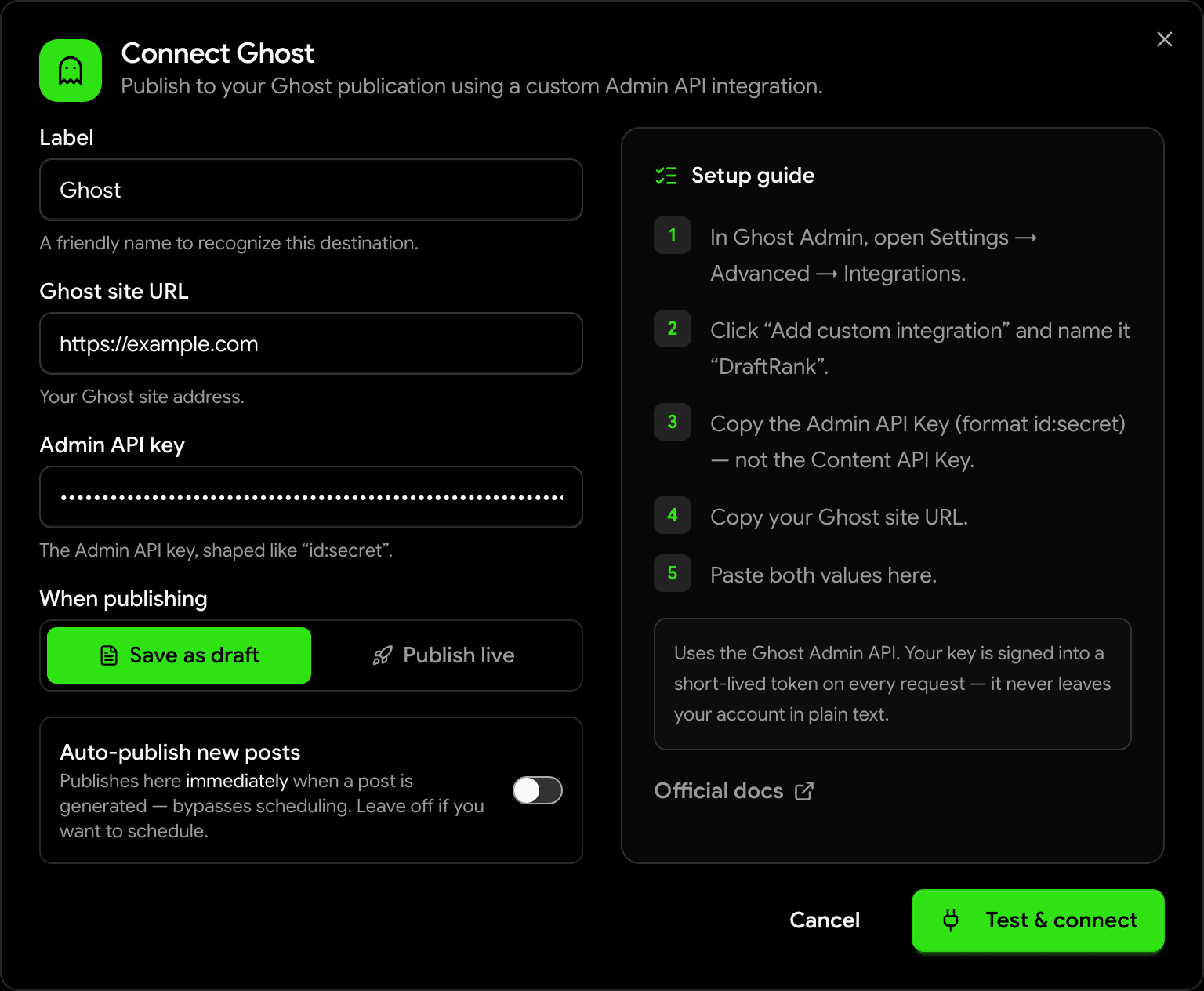
    Enter your Ghost site URL and the Admin API key. DraftRank appends the admin API path itself, so a trailing /ghost is trimmed for you. Leave “When publishing” on Save as draft for the first run so nothing goes live before you have seen a post arrive.

    DraftRank's Connect Ghost dialog filled in with a Ghost site URL and an Admin API key.

    Test & connect signs a short-lived token from your key and makes a real authenticated call to Ghost. Nothing is saved unless it succeeds.

  5. 5

    Confirm the destination shows Connected

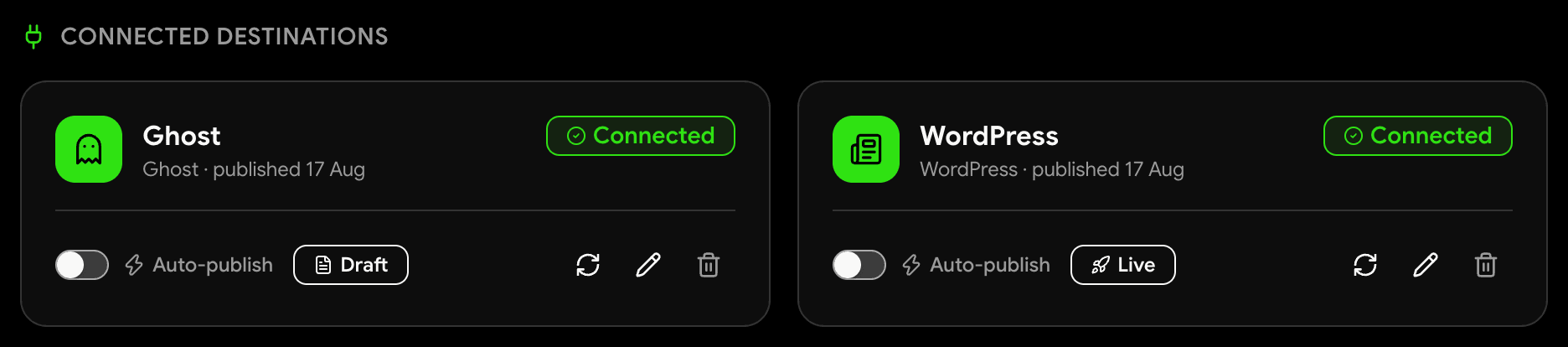
    The destination moves to the Connected tab with a green Connected badge. From here you can re-test it, switch between draft and live, or turn on auto-publish so every newly generated post goes out immediately.

    A connected Ghost destination in DraftRank showing a Connected badge and an auto-publish toggle.
  6. 6

    Publish an article and open it in Ghost

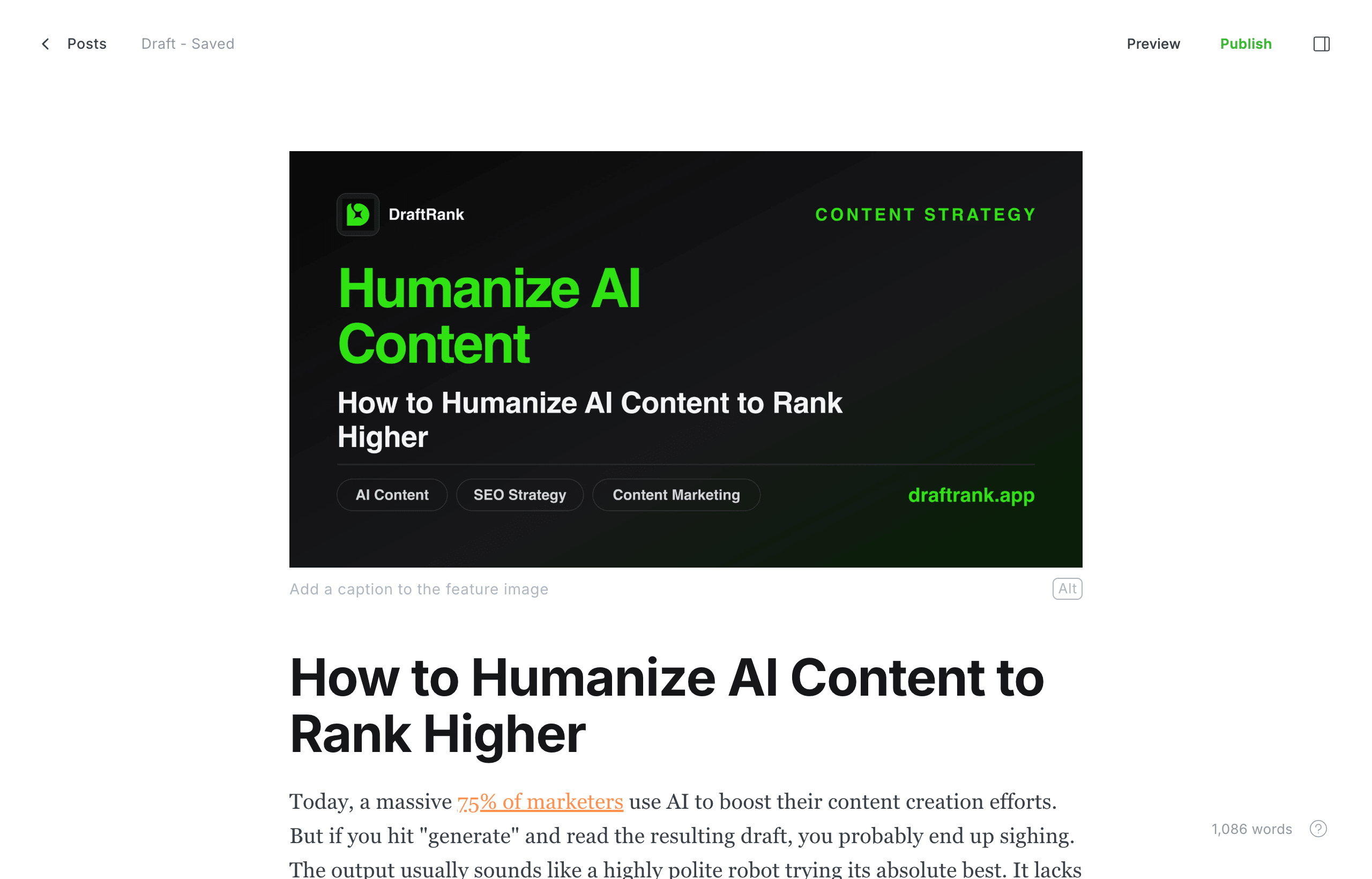
    Open any finished article, press Publish, tick your Ghost destination and confirm. The post appears in Ghost with the cover already set as the feature image, and the body starting at your first paragraph — Ghost renders the title itself, so DraftRank leaves it out of the content.

    A DraftRank article open in the Ghost editor with the cover set as the feature image and the body starting at the first paragraph.
  7. 7

    That's it — tags, excerpt and slug are already filled in

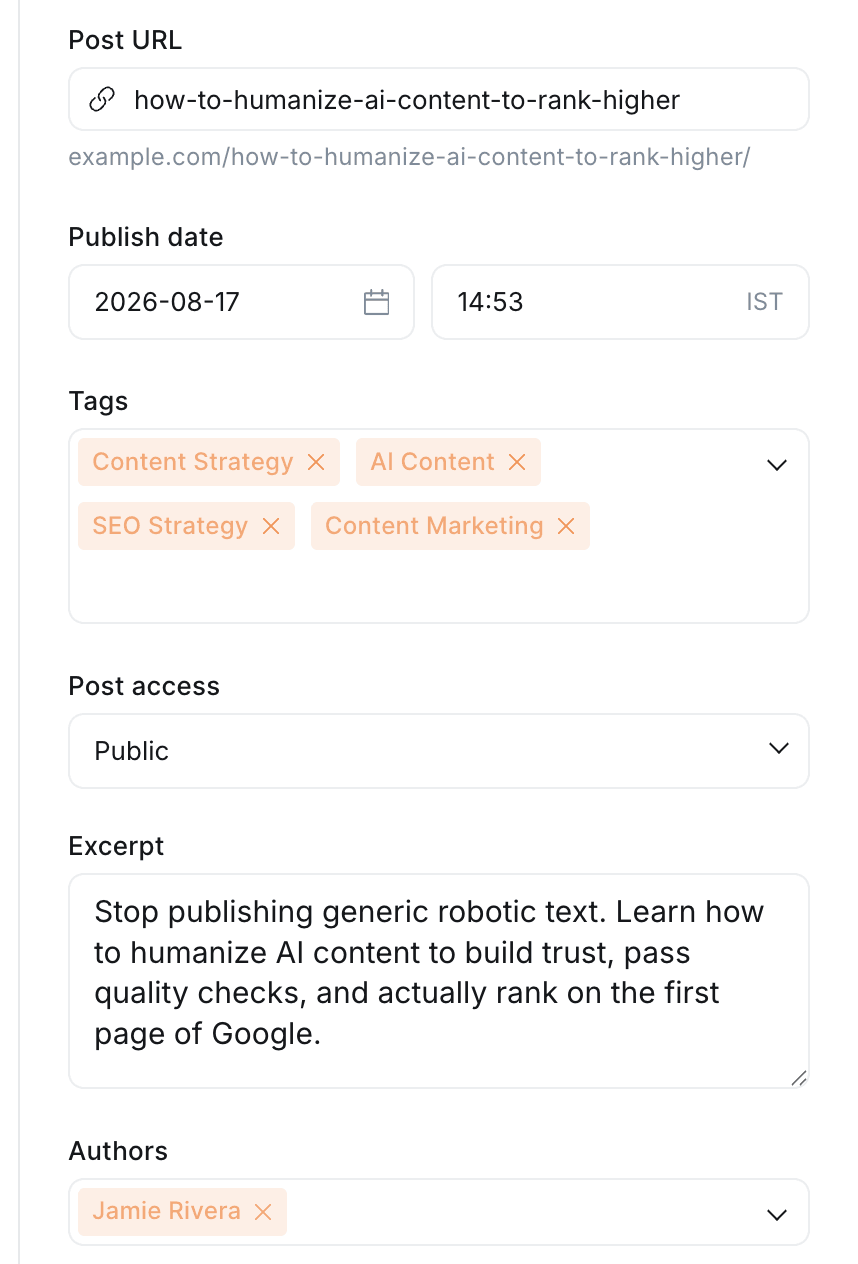
    Open the post settings panel in Ghost and everything is in place: the article's category arrives as the first tag (which Ghost treats as the primary tag and shows above the title), the rest of the tags follow, the excerpt comes from your meta description, and the slug matches the article.

    The Ghost post settings panel showing the post URL, publish date, four tags, post access, excerpt and author.

What goes in each field

These labels match the connect dialog exactly, so you can read this next to the form.

FieldWhat to enterExample
Ghost site URLYour Ghost admin address. On Ghost(Pro) this may be your-site.ghost.io even when readers use a custom domain.https://yourblog.com
Admin API keyThe Admin API key from your custom integration, in id:secret form.6620abc…:e5a1…

If something goes wrong

Find the message DraftRank showed you. Each one has a specific cause.

Ghost Admin API key must look like "id:secret".

Why: You pasted the Content API Key, which has no colon in it.

Fix: Go back to the integration in Ghost Admin and copy the Admin API Key instead — the one shaped like 6620abc…:e5a1….

Authentication failed … Double-check your credentials.

Why: The integration was deleted or regenerated, or your server clock is out of sync. Ghost tokens are valid for a five-minute window, so a badly skewed clock makes every request look expired.

Fix: Confirm the integration still exists in Ghost Admin and re-copy the key. If you self-host, check the server time is synchronised with NTP.

Could not reach yourblog.com. Check the URL and try again.

Why: The admin domain differs from the public one, which is common on Ghost(Pro).

Fix: Use the API URL exactly as shown on the integration screen in Ghost Admin — that is the admin domain, and it is the one the Admin API answers on.

Posts publish but the category is missing

Why: Ghost has no separate category concept.

Fix: This is expected. DraftRank sends the category as the post's first tag, which Ghost treats as the primary tag, followed by the remaining tags.

Ghost accepted the post but stored no content. Check your Ghost version.

Why: Ghost created the post but saved an empty body, and the fallback could not write it either. DraftRank sends the article as HTML and asks Ghost to convert it; if a Ghost release changes how that works, the body can arrive blank.

Fix: This should not happen on any current Ghost — DraftRank detects a blank body and rewrites it through Ghost's Lexical format automatically. If you see it, report the Ghost version you are on, because it means both paths were refused.

The post arrives as a draft when I expected it live

Why: The destination is set to “Save as draft”, which is the default.

Fix: That is deliberate, so a first run cannot surprise you by going public. Switch the destination to “Publish live” once you are happy with what is arriving, or override it per publish in the Publish dialog.

Ghost FAQ

What is the difference between the Content and Admin API keys?

The Content API key is read-only and safe to expose in a browser; it can only fetch published posts. The Admin API key can create and modify content, which is what publishing needs. Only the Admin key works here.

Is my Admin API key sent to Ghost in plain text?

No. The key is a signing secret: DraftRank uses it to sign a JSON Web Token that expires five minutes after it is created, and sends that token instead. The key itself is stored encrypted and never leaves the server.

Will the cover image come across?

Yes. The generated cover is set as the Ghost feature image, and the meta title and description are set as the post's SEO fields.

Why is the article title not repeated at the top of the post body?

Because Ghost already renders the title above the content. DraftRank strips the leading heading from the body when it matches the post title, so you get one H1 per page instead of two — two H1s look duplicated to readers and dilute the page for search engines. If an article's first heading says something different from the title it is left alone, because that is real content.

Does Ghost need to download the cover image?

No. Ghost accepts the cover as a URL and sets it as the post's feature image directly, so there is no upload step and nothing to configure. That differs from WordPress, which cannot use an externally hosted image and needs the file copied into its own media library first.

Can I publish to a specific Ghost newsletter or send an email?

No. Posts are created on the site only. Ghost's email send is a separate step you trigger yourself, which keeps an automated post from mailing your whole list by accident.

Ghost documentation

Ready to connect Ghost?

Open your site in DraftRank, go to the Integrations tab, and follow the steps above.

Open DraftRank