DraftRank
All integration guides

// Integration guide

How to connect WordPress

DraftRank publishes to WordPress through the built-in REST API, authenticated with an application password — a revocable credential separate from your login password, with no plugin to install. Posts arrive with their formatting, excerpt and slug intact, the cover image uploaded as the featured image, and the category and tags set. Works on self-hosted WordPress and on WordPress.com Business.

About 5 minutes Easy

Before you start

  • WordPress 5.6 or newer (application passwords shipped in 5.6, December 2020).
  • Your site served over HTTPS. WordPress only offers application passwords over SSL — the sole exception is an environment type of exactly 'local', which does not apply to a site DraftRank has to reach over the internet.
  • An account on that site with permission to publish posts (Administrator or Editor).
  • The REST API reachable from the public internet at /wp-json/.
Step by step

  1. 1

    Sign in to your WordPress admin

    Open your site's admin dashboard and sign in as the user you want the posts to be written by. Every post DraftRank creates is attributed to this account, so if you would rather posts did not appear under the site owner's name, create an Editor user first and sign in as that instead.

    https://example.com/wp-admin
  2. 2

    Open your profile and scroll to Application Passwords

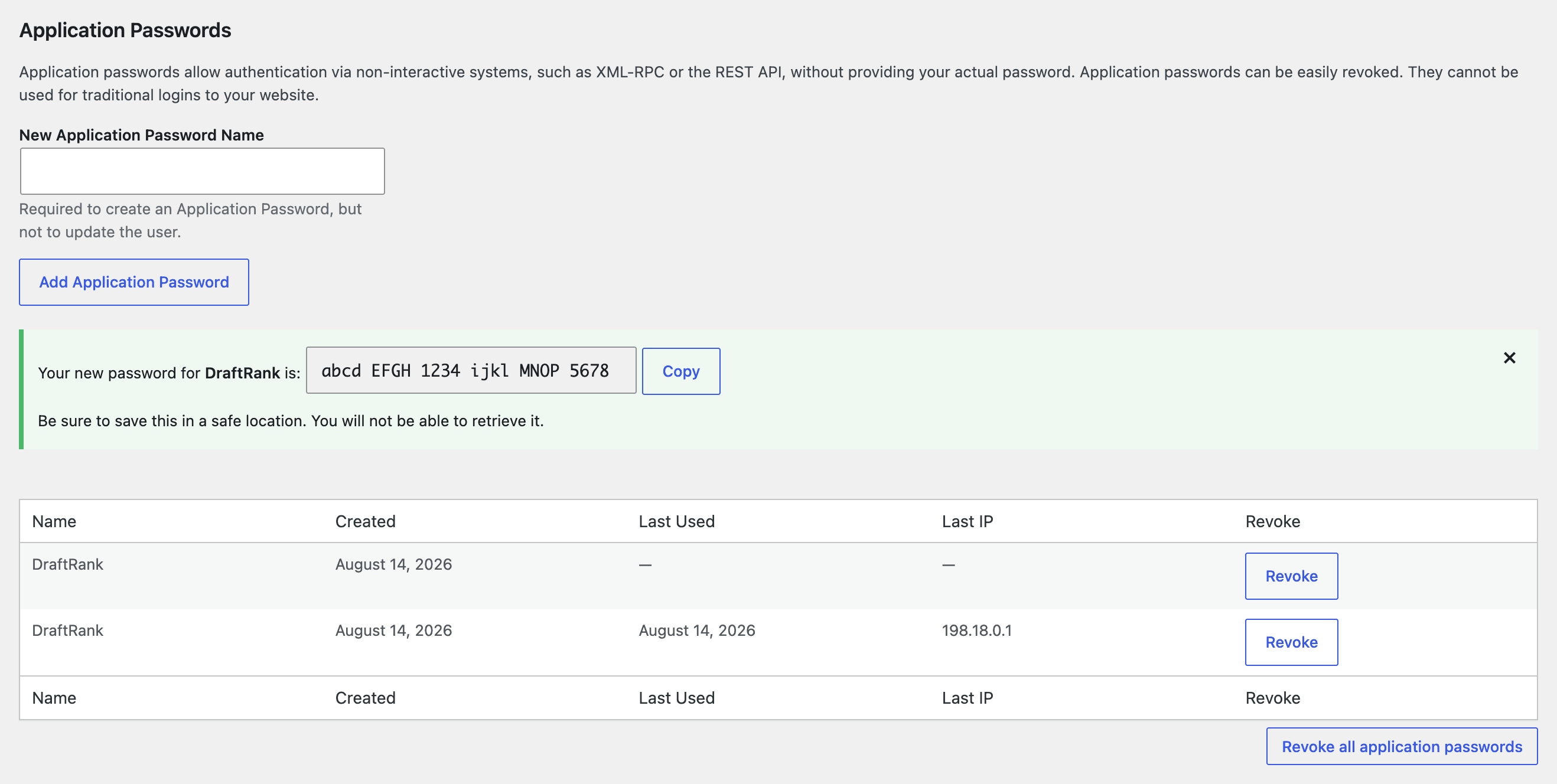
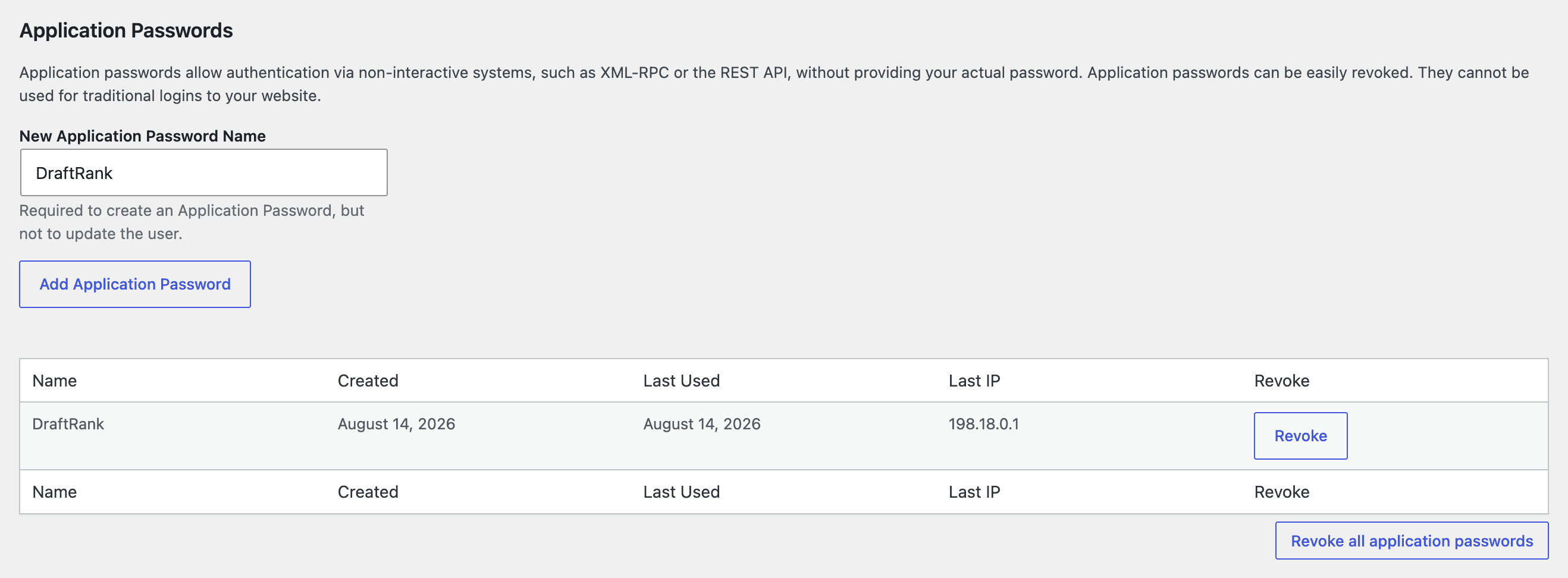
    Go to Users → Profile, then scroll right to the bottom of the page. “Application Passwords” is the last section, below “Account Management”. Type a name you will recognise later — DraftRank — into the box.

    The Application Passwords section of a WordPress profile with the name DraftRank typed into the New Application Password Name field.

    No form here, just a message about HTTPS? That is the single most common blocker — it also silently blocks the connection itself, not only this screen. Jump to “If something goes wrong” below before going any further.

  3. 3

    Press Add Application Password and copy the result

    WordPress generates a 24-character password and shows it exactly once. Copy it now — you cannot retrieve it later, and if you lose it you simply revoke that row and generate a new one.

    WordPress showing a newly generated application password with a Copy button, and the password listed in the table below.

    The spaces are cosmetic — WordPress strips them before checking, so it works pasted with or without them. This is not your login password and cannot be used to sign in to wp-admin.

  4. 4

    In DraftRank, open Integrations → Add a destination

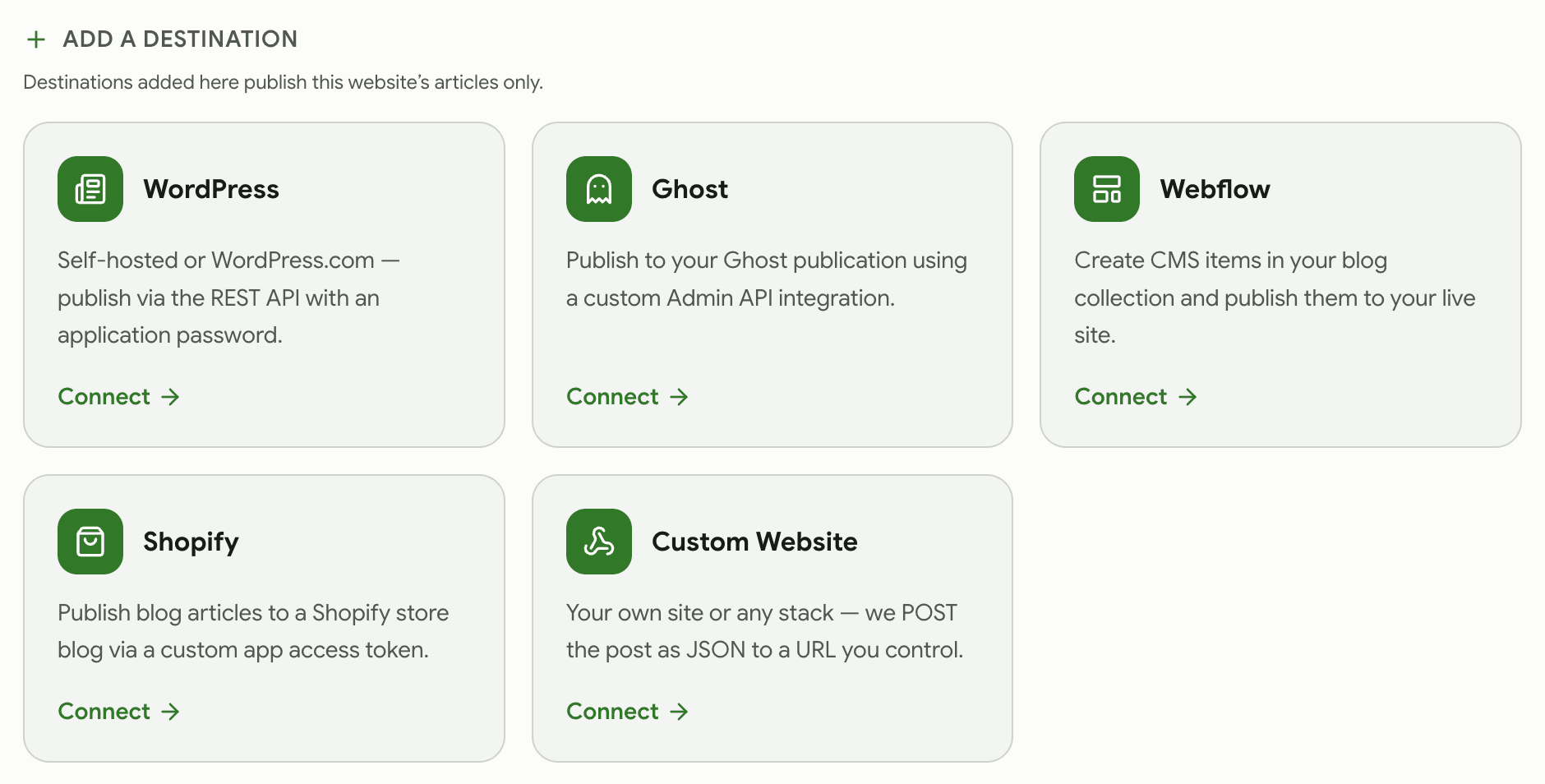
    Switch to DraftRank, open the site you want to publish from, and go to the Integrations tab. Press Connect on the WordPress card.

    DraftRank's Add a destination screen showing cards for WordPress, Ghost, Webflow, Shopify and Custom Website.

    Destinations belong to one site. If you publish for several brands, add the destination under the site whose articles should go there.

  5. 5

    Fill in the three values and press Test & connect

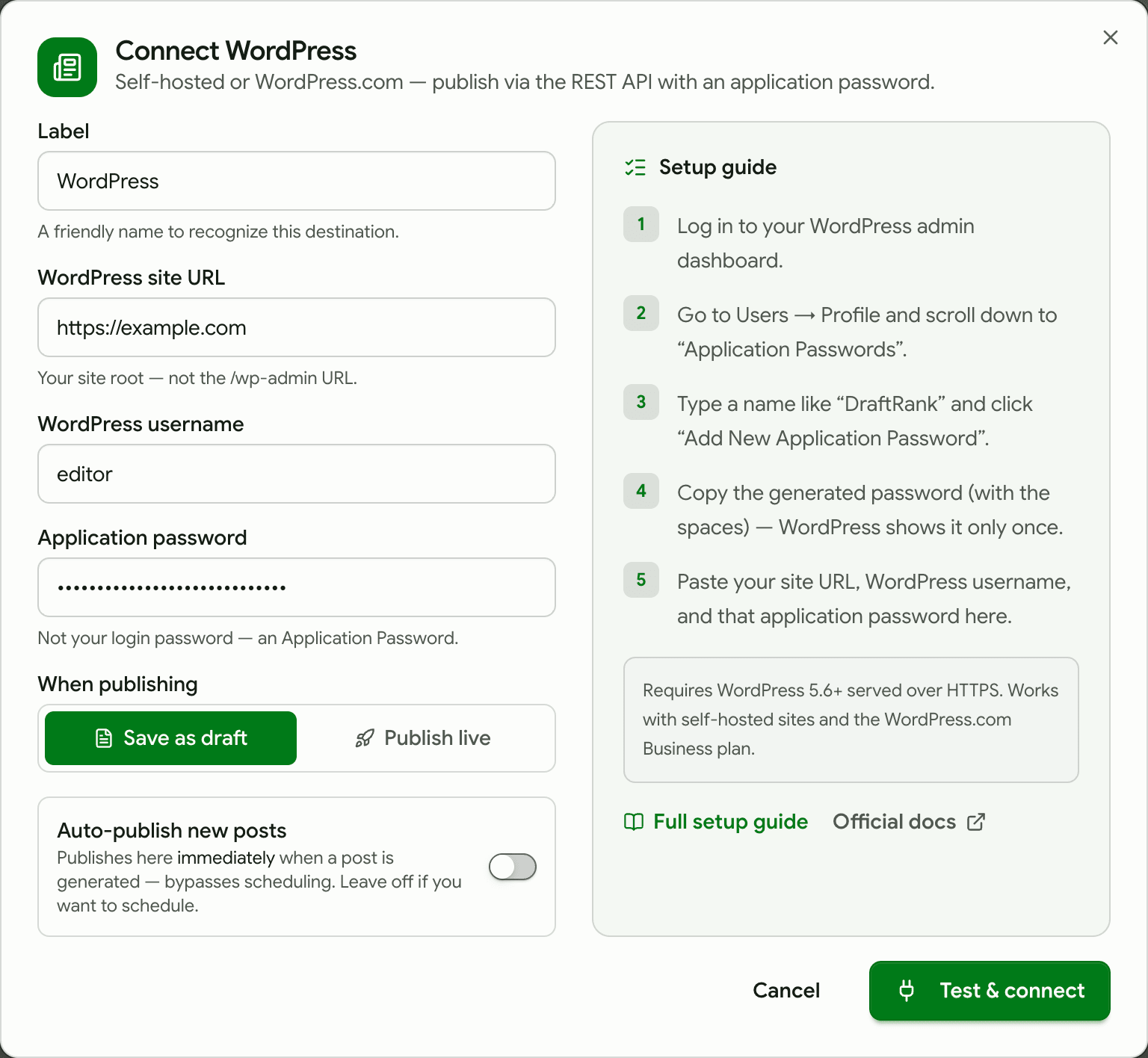
    Enter your site root, your WordPress username and the application password. Leave “When publishing” on Save as draft for the first run so nothing goes public before you have seen a post arrive — you can switch it to Publish live afterwards.

    DraftRank's Connect WordPress dialog filled in with a site URL, username and application password.

    Use your WordPress username, not the email address you sign in with — basic authentication matches on the username. Test & connect makes a real authenticated call and refuses to save anything unless it succeeds.

  6. 6

    Confirm the destination shows Connected

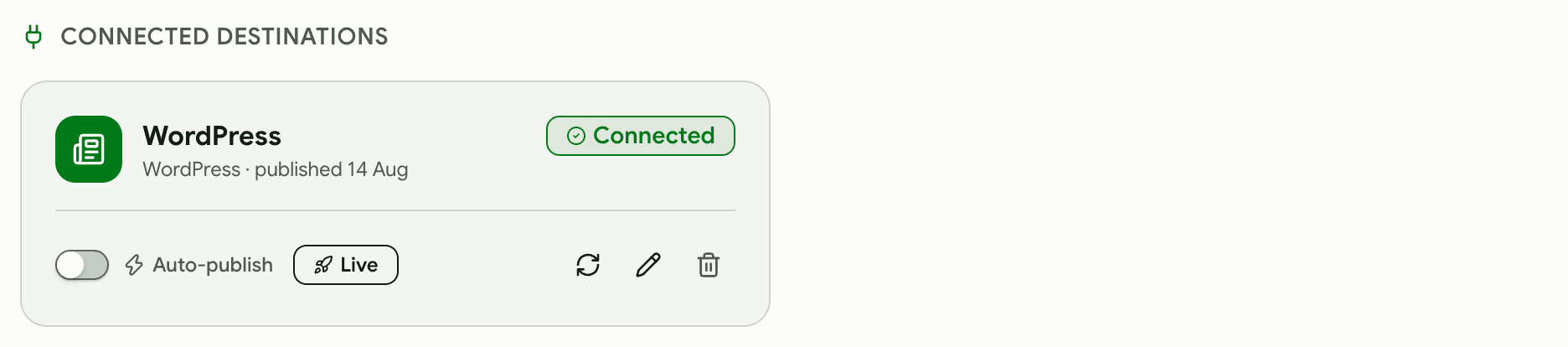
    The destination moves to the Connected tab with a green Connected badge. From here you can re-test it at any time, switch between draft and live, or turn on auto-publish so every newly generated post goes out immediately.

    A connected WordPress destination in DraftRank showing a Connected badge, an auto-publish toggle and a Live badge.
  7. 7

    Publish an article and check it in WordPress

    Open any finished article, press Publish, tick your WordPress destination and confirm. Then look in WordPress under Posts → All Posts: the article is there with its category and tags already filled in, because DraftRank creates any that do not exist yet.

    WordPress Posts list showing a published DraftRank article with its category and three tags populated.

    Back in DraftRank the article gains a “Published to” panel with a View link that opens the live URL, and the application password's row in WordPress now shows a Last Used date — a quick way to prove the connection is really being used.

  8. 8

    That's it — everything lands in the right place

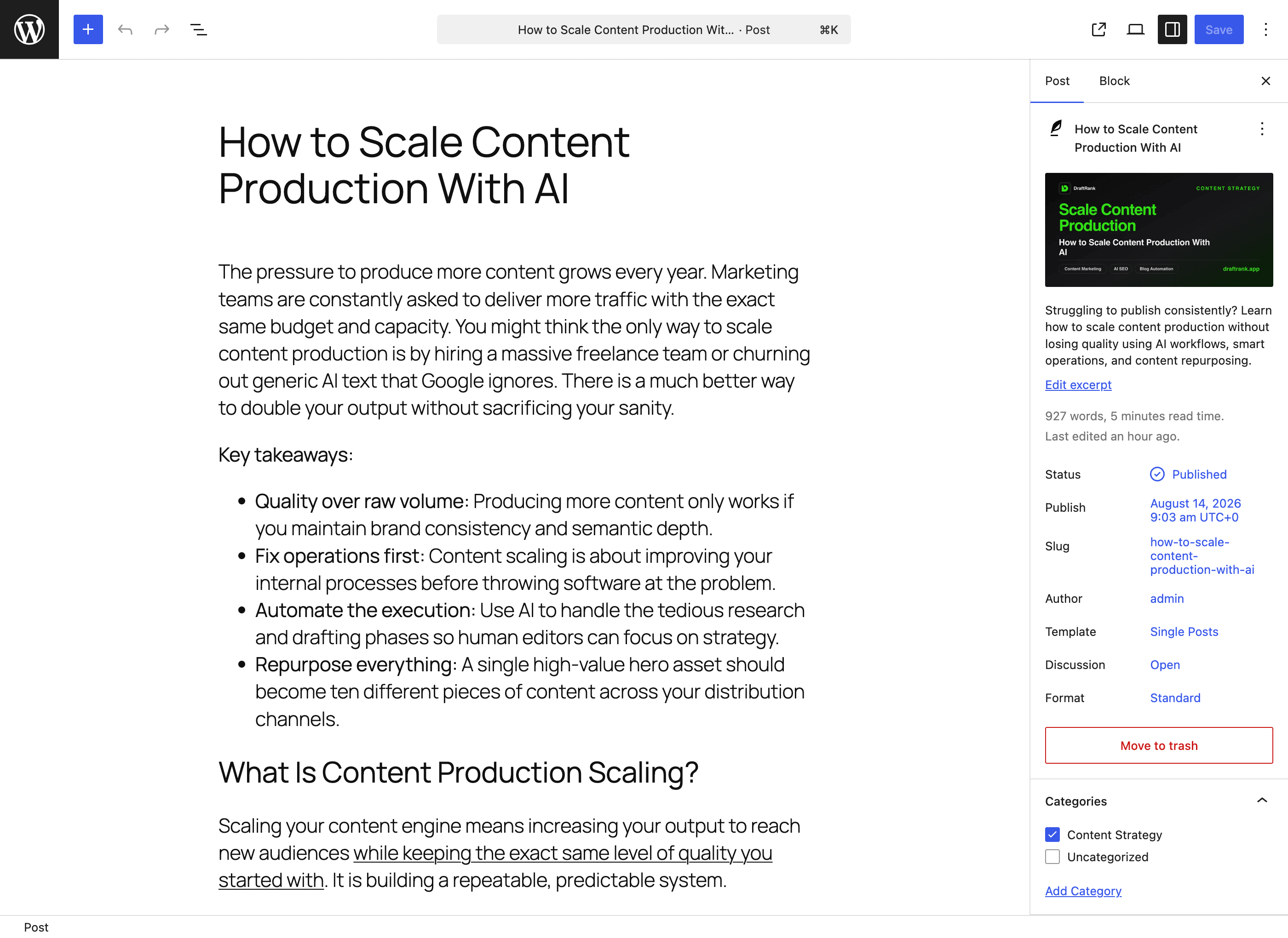
    Open the post in WordPress and you can see the whole thing arrived: headings, lists and links intact, the excerpt filled from the meta description, the slug set, the category ticked, and the cover image uploaded to your media library as the featured image. Nothing else to configure.

    The published article open in the WordPress editor, with the DraftRank cover set as the featured image, the excerpt filled in, status Published and the Content Strategy category ticked.

    Your theme decides how the featured image is displayed on the public page — many crop it to a fixed shape, so the cover may be trimmed on the live post even though the full image is in your media library.

What goes in each field

These labels match the connect dialog exactly, so you can read this next to the form.

FieldWhat to enterExample
WordPress site URLYour site root. Not the /wp-admin URL and not the /wp-json path — DraftRank appends the REST path itself.https://yourblog.com
WordPress usernameThe username of the account you generated the application password under. Not your email address.editor
Application passwordThe 24-character credential WordPress generated in the step above. Never your login password.xxxx xxxx xxxx xxxx xxxx xxxx

If something goes wrong

Find the message DraftRank showed you. Each one has a specific cause.

Authentication failed … Double-check your credentials.

Why: The username or application password is wrong, or your host strips the Authorization header before WordPress sees it.

Fix: Confirm you used the username rather than the email address, and regenerate the application password. If both are definitely right, the header is being dropped — ask your host (or check your Apache/Nginx config) to pass Authorization through to PHP.

The application password feature requires HTTPS, which is not enabled on this site.

Why: WordPress only offers application passwords over SSL. Internally the check is is_ssl() || 'local' === wp_get_environment_type(), so a site served over plain HTTP gets the section rendered but with the form replaced by this message.

Fix: Serve the site over HTTPS — that is the real fix, and it is required anyway, because application passwords travel as HTTP Basic authentication and would otherwise cross the network in clear text. Confirm both the WordPress Address and Site Address under Settings → General start with https://.

My site loads over HTTPS, but WordPress still says the feature requires HTTPS

Why: is_ssl() only inspects $_SERVER['HTTPS'] and SERVER_PORT — it never looks at X-Forwarded-Proto. Behind a reverse proxy or load balancer that terminates TLS (Cloudflare, nginx, Dokploy, most managed hosts), PHP sees a plain HTTP request internally, so is_ssl() is false even though every visitor is on https://.

Fix: Tell WordPress what the proxy already knows, in wp-config.php above the “stop editing” comment: if ( isset( $_SERVER['HTTP_X_FORWARDED_PROTO'] ) && str_contains( $_SERVER['HTTP_X_FORWARDED_PROTO'], 'https' ) ) { $_SERVER['HTTPS'] = 'on'; } — checking for the substring matters, because some proxies send a comma-separated list such as “http,https”. Only do this when the proxy is the sole route to the site: the header is client-supplied, so if the app is also reachable directly, anyone can set it.

I added the X-Forwarded-Proto fix and WordPress still says the feature requires HTTPS

Why: There is more than one proxy in front of PHP — Cloudflare in front of nginx or Caddy, or a tunnel in front of a container. Each hop rewrites X-Forwarded-Proto to the scheme it was itself spoken to on, so the innermost hop overwrites the header with 'http' and the fix reads that value instead of the visitor's real scheme.

Fix: Trust a header the inner hop does not rewrite. Behind Cloudflare that is CF-Visitor, which carries {"scheme":"https"} all the way through: $v = json_decode( $_SERVER['HTTP_CF_VISITOR'] ?? '', true ); if ( is_array( $v ) && ( $v['scheme'] ?? '' ) === 'https' ) { $_SERVER['HTTPS'] = 'on'; } — keep the X-Forwarded-Proto check as a fallback for hosts without Cloudflare. To see which headers actually reach PHP, print the ones starting with HTTP_X_ and HTTP_CF_ from a temporary mu-plugin.

The screen says to “set the environment type accordingly” — which value works?

Why: That link is easy to misread. WordPress accepts four environment types (local, development, staging, production) but only local lifts the HTTPS requirement — development and staging do not, despite the wording.

Fix: Add define( 'WP_ENVIRONMENT_TYPE', 'local' ); to wp-config.php above the “stop editing” comment. Only do this on a machine that is genuinely local: on any host reachable from the internet it means your credentials are sent unencrypted, so put HTTPS on it instead. An invalid value silently falls back to production.

The Application Passwords section is missing from my profile entirely

Why: A plugin has disabled it through the wp_is_application_passwords_available filter — separate from the HTTPS check above.

Fix: Temporarily disable security plugins (Wordfence, iThemes, Solid Security and similar all offer a switch for this) to find the one turning it off, then re-enable the rest.

Could not reach yourblog.com. Check the URL and try again.

Why: The URL is wrong, or the site is not reachable from the public internet.

Fix: Open the URL in a browser exactly as you typed it. Check for a typo, a missing subdomain, or a firewall/Cloudflare rule blocking non-browser traffic.

yourblog.com isn't a reachable public address. Use your site's public URL.

Why: The address resolves to a private or local network. DraftRank refuses to fetch internal addresses, which protects your infrastructure from server-side request forgery.

Fix: Use the real public URL. localhost, 127.0.0.1, 192.168.x.x, 10.x.x.x and .local hostnames cannot be published to — a staging site must be internet-reachable to receive posts.

WordPress: HTTP 404 (or a page of HTML instead of JSON)

Why: The REST API is disabled, or permalinks are set to Plain.

Fix: Visit /wp-json/ on your site — you should see JSON. If not, set Settings → Permalinks to anything other than Plain and re-save, then disable any “disable REST API” plugin option.

Posts arrive but are not visible on the site

Why: The destination is set to “Save as draft”.

Fix: That is the default and it is deliberate. Switch the destination to “Publish live” once you are happy with what is arriving.

The post published but has no featured image

Why: The cover image could not be uploaded to your media library. Usually the account lacks the upload_files capability, the cover is an SVG (WordPress rejects SVG uploads by default), or a security plugin is blocking uploads over the REST API.

Fix: The article itself still publishes — a missing thumbnail never blocks a post — so check the destination's account can upload media by adding an image by hand in wp-admin as that user. Editor and Administrator both have the capability; a Contributor does not.

The post lands in Uncategorized even though the article has a category

Why: The REST API needs category and tag IDs, so DraftRank looks each name up and creates it when missing — and creating a term requires the manage_categories capability, which Authors and Contributors do not have.

Fix: Publish as an Editor or Administrator, or create the categories and tags by hand in WordPress first — once the term exists, any role that can publish is able to assign it.

Re-publishing an article created a second post with a “-2” URL

Why: Pressing Publish again on an article that is already live is treated as a deliberate re-publish, and WordPress will not reuse a slug that another post still holds, so it appends a number.

Fix: Trash the earlier copy in WordPress and the original slug frees up. Scheduled and auto-publish runs do not do this — they are de-duplicated, so a retried job never posts twice.

WordPress FAQ

Is an application password safe to hand over?

It is safer than your login password: it only works for API requests, it can be revoked on its own from the same profile screen without changing your password, and it cannot be used to sign in to wp-admin through a browser. DraftRank stores it encrypted and never shows it back to you.

Does this work on WordPress.com?

Yes, on the Business plan or higher, which is the tier that exposes the REST API with application passwords. Free, Personal and Premium WordPress.com sites cannot be published to this way — use the Custom Website webhook instead if you need one of those.

Which user will the posts be attributed to?

The user whose username and application password you entered. Create a dedicated “Editor” user first if you would rather posts were not attributed to the site owner.

Can DraftRank set a featured image and categories?

Yes, both. The generated cover image is uploaded into your WordPress media library and set as the post's featured image, with the article title as its alt text — themes read the featured image field and cannot use an image hosted elsewhere, so it has to be a real upload. The article's category and tags are set too, and any that do not exist yet are created for you. The post also arrives with its title, full HTML body, excerpt and slug, and ticking “Mark as featured” maps to WordPress's sticky flag, which pins it to the blog index.

Why is the article title not repeated at the top of the post body?

Because your theme already renders the title above the content. DraftRank strips the leading heading from the body when it matches the post title, so you get one H1 per page instead of two — two H1s look duplicated to readers and dilute the page for search engines. If an article's first heading says something different from the title it is left alone, because that is real content.

Do I need an Administrator account, or is Editor enough?

Editor is enough for everything: publishing, uploading the featured image and creating categories and tags. An Author account can publish and upload images but cannot create new categories or tags — with that role a post whose category does not already exist in WordPress still publishes, it just lands in Uncategorized. Create the terms by hand first, or use an Editor account.

WordPress documentation

Ready to connect WordPress?

Open your site in DraftRank, go to the Integrations tab, and follow the steps above.

Open DraftRank