DraftRank
All integration guides

// Integration guide

How to connect Shopify

DraftRank publishes articles to a Shopify store blog through the Admin API, using a long-lived access token from a custom app. Shopify changed how those tokens are issued at the start of 2026 — read the notice below before you start.

About 5 minutes Moderate

Before you start

  • A Shopify store with a blog — create one under Online Store → Blog posts if you have none.
  • Store owner access, or a staff account with the “App development” permission.
  • A legacy custom app on the store — either one created before 1 January 2026, or one created by a Shopify Partner on a development store they own (see the notice above).
  • Your .myshopify.com admin domain, which is not the same as your custom storefront domain.
Step by step

  1. 1

    Open Develop apps in the Shopify admin

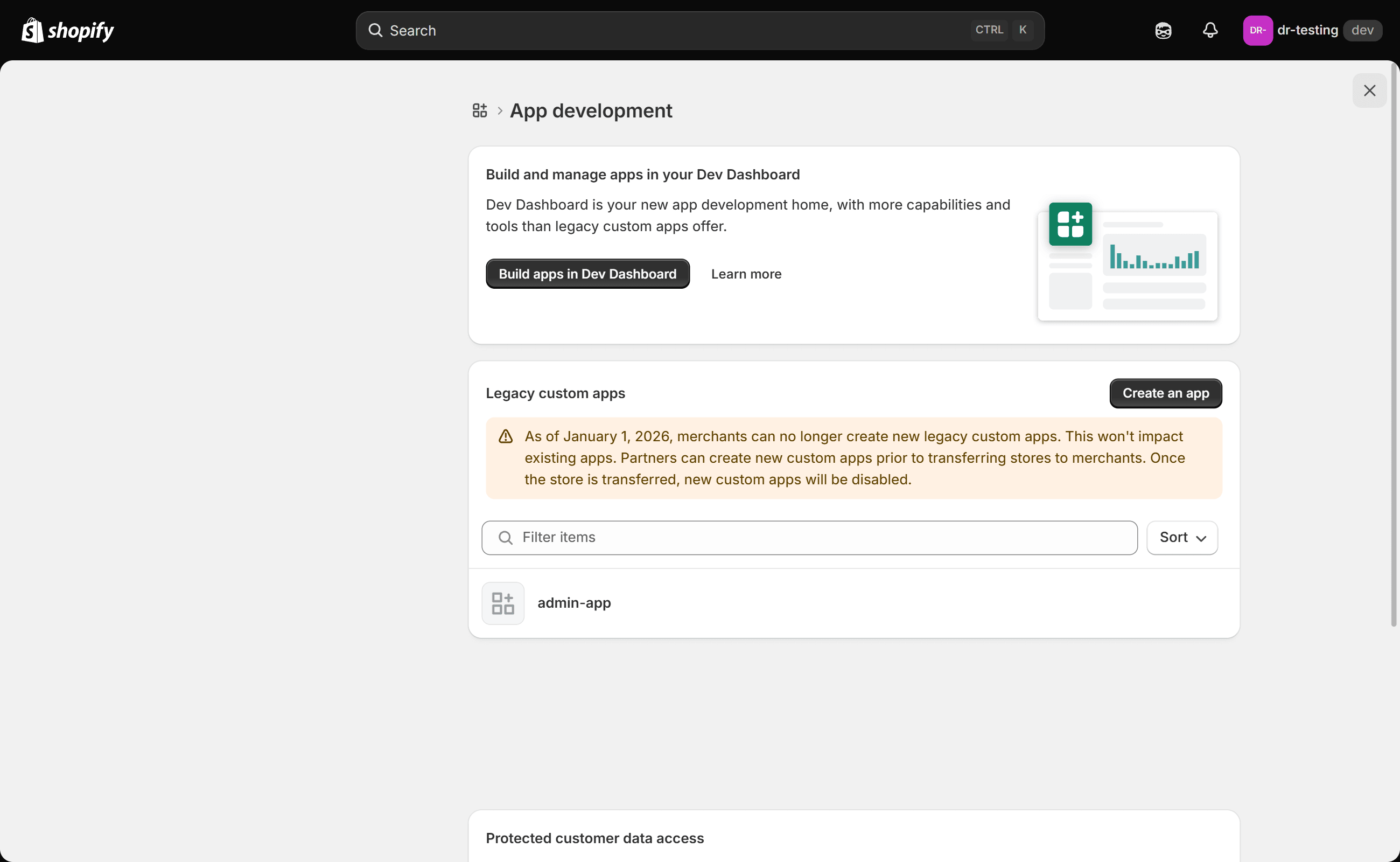
    Go to Settings → Apps and sales channels → Develop apps. Your existing legacy custom app is listed there — open it.

    Shopify's App development screen, showing the notice that legacy custom apps can no longer be created as of 1 January 2026, with one existing custom app listed below it.

    Shopify shows its own notice on this screen. Read it carefully: merchants can no longer create legacy custom apps, but Partners can still create them on a development store before it is transferred. On a Partner-owned development store the Create an app button therefore still produces exactly the app this integration needs.

  2. 2

    Give it the two content scopes

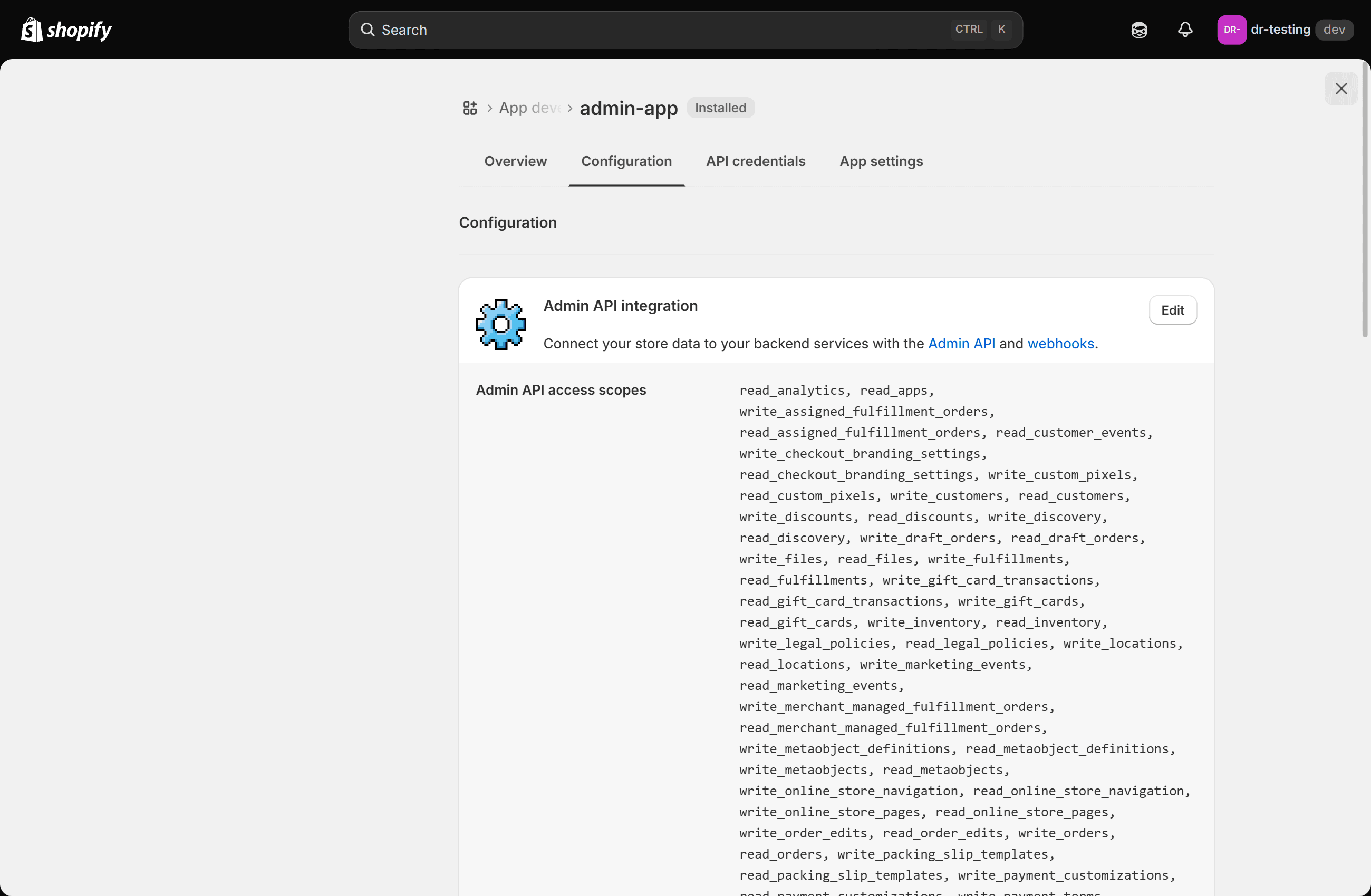
    Open the Configuration tab and, under Admin API integration, make sure read_content and write_content are both enabled, then save. Reading is how DraftRank finds your blog; writing is how it creates the article.

    read_content · write_content
    The Configuration tab of a Shopify custom app, showing the Admin API integration card and the list of Admin API access scopes granted to it.
  3. 3

    Install the app and copy the access token

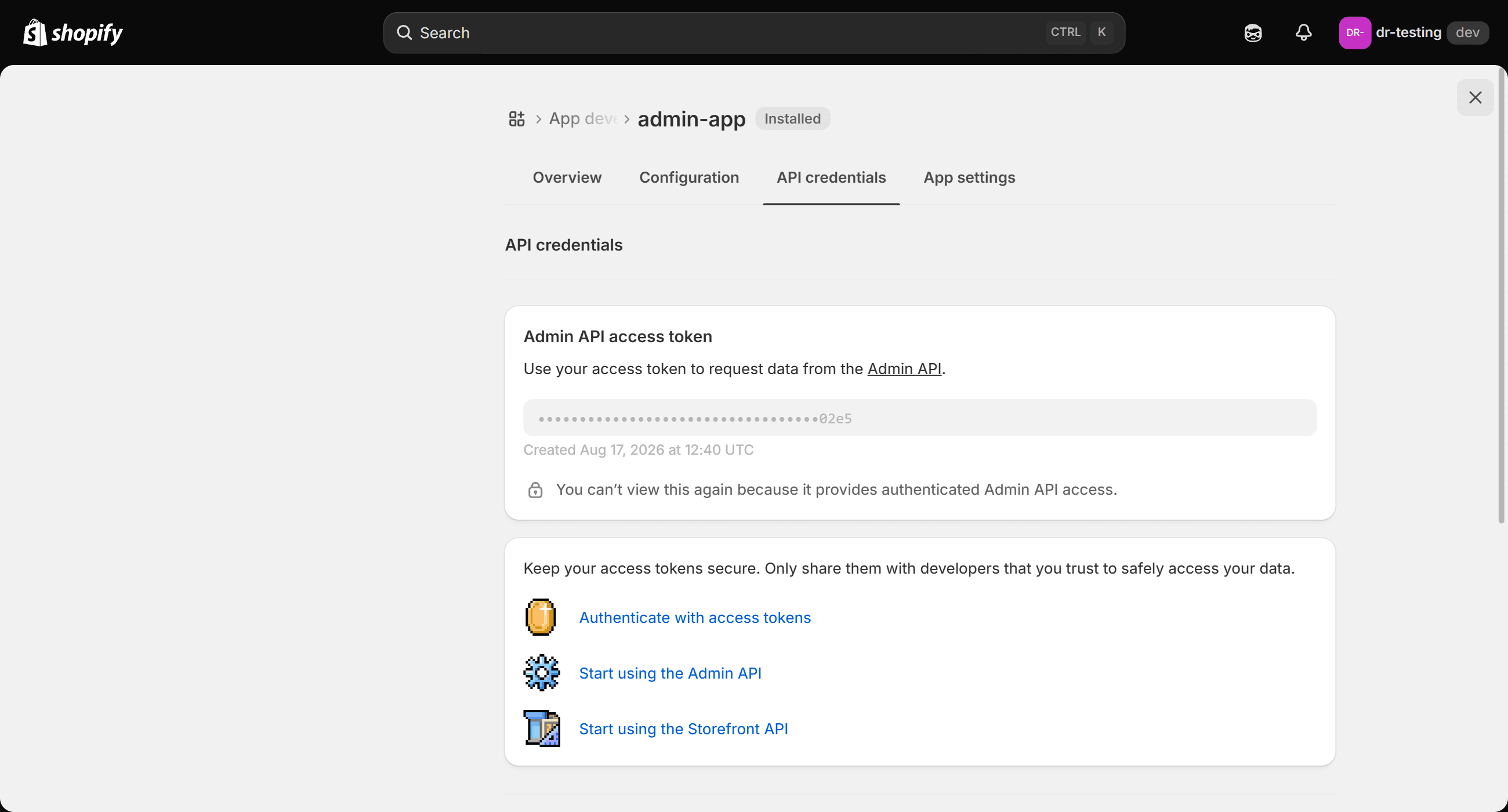
    On the API credentials tab, install the app if it is not installed yet, then reveal the Admin API access token and copy it.

    shpat_…
    The API credentials tab of a Shopify custom app, showing the Admin API access token masked to its last four characters, the date it was created, and the notice that it cannot be viewed again.

    Shopify reveals this value once and then masks it forever — the screen afterwards shows only the last four characters and the line “You can't view this again.” If you no longer have it, uninstall and reinstall the app to issue a new one.

  4. 4

    Find your store domain

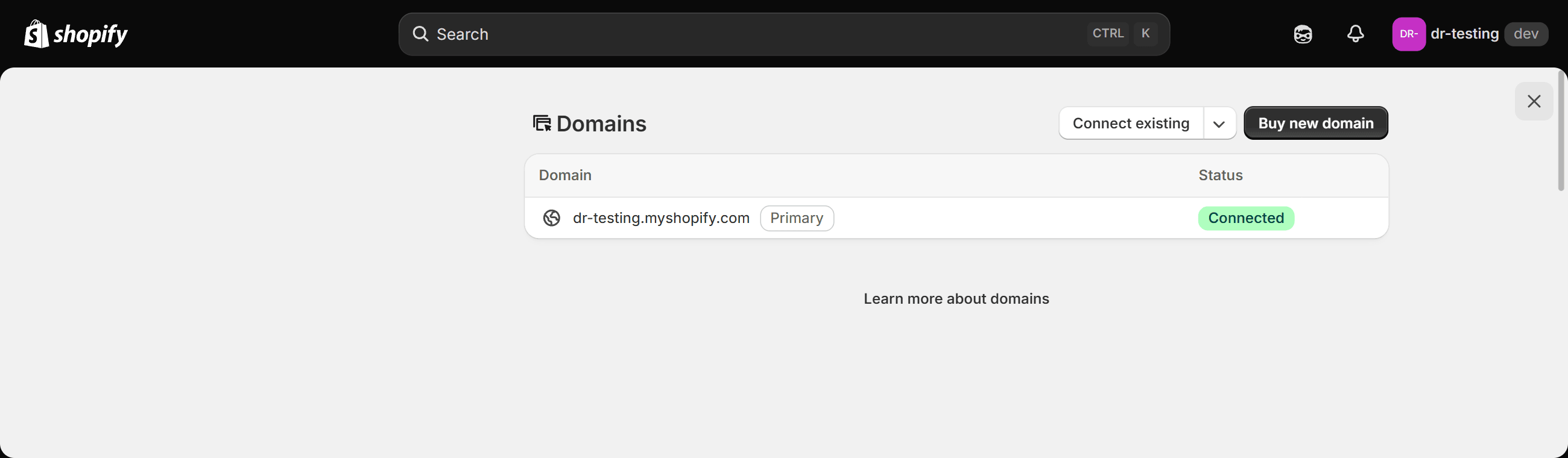
    Use the admin domain ending in .myshopify.com, not the custom domain your customers see. It is shown under Settings → Domains as your permanent domain. Typing just the store name works too — DraftRank appends .myshopify.com for you.

    your-store.myshopify.com
    Shopify's Domains settings screen listing a single myshopify.com domain marked Primary with a Connected status.
  5. 5

    In DraftRank, open Integrations → Add a destination

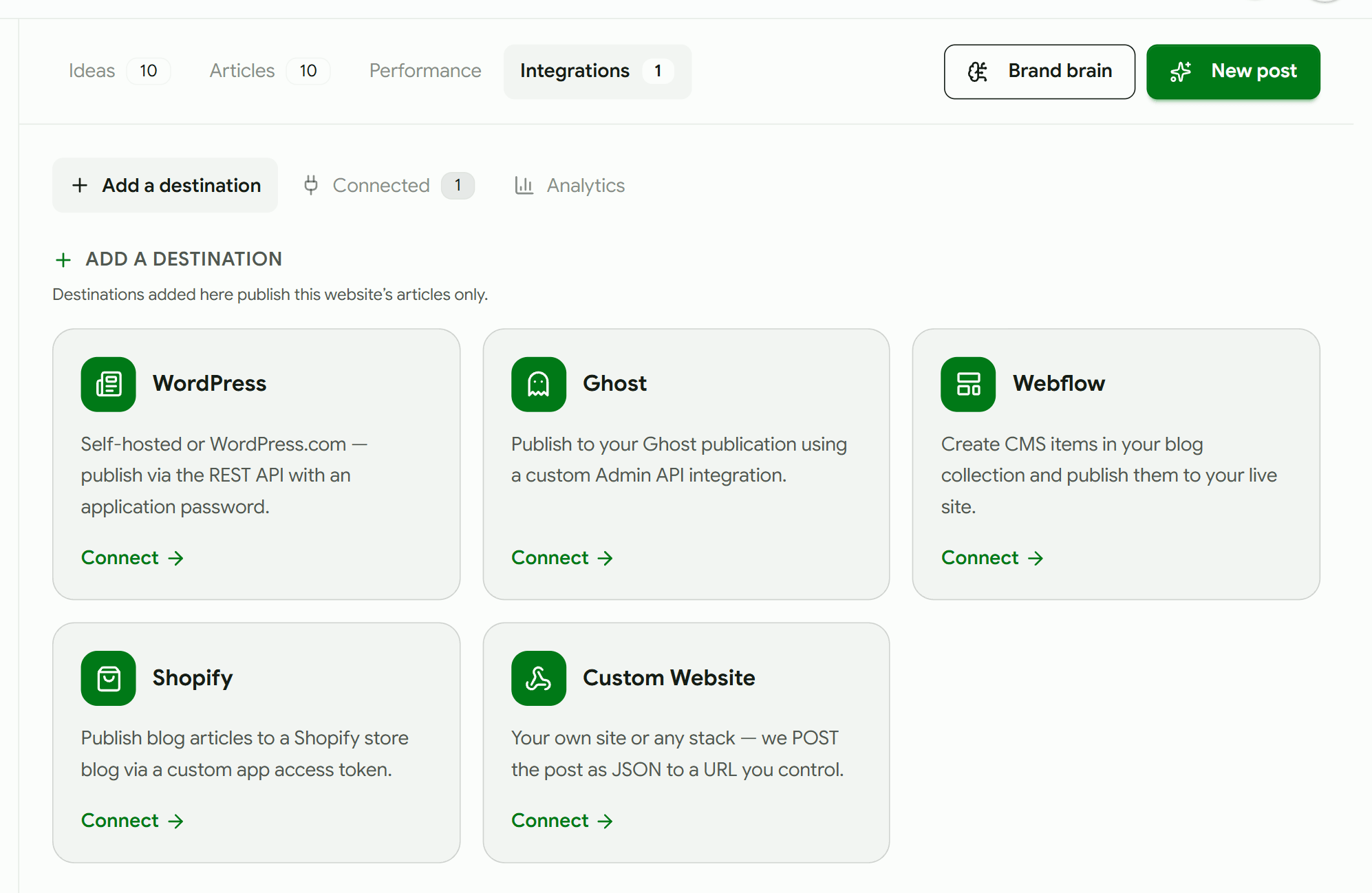
    Open the site you want to publish from, switch to the Integrations tab, and pick Shopify from the list of destinations.

    DraftRank's Add a destination screen for a site, showing cards for WordPress, Ghost, Webflow, Shopify and Custom Website.
  6. 6

    Fill in the values and press Test & connect

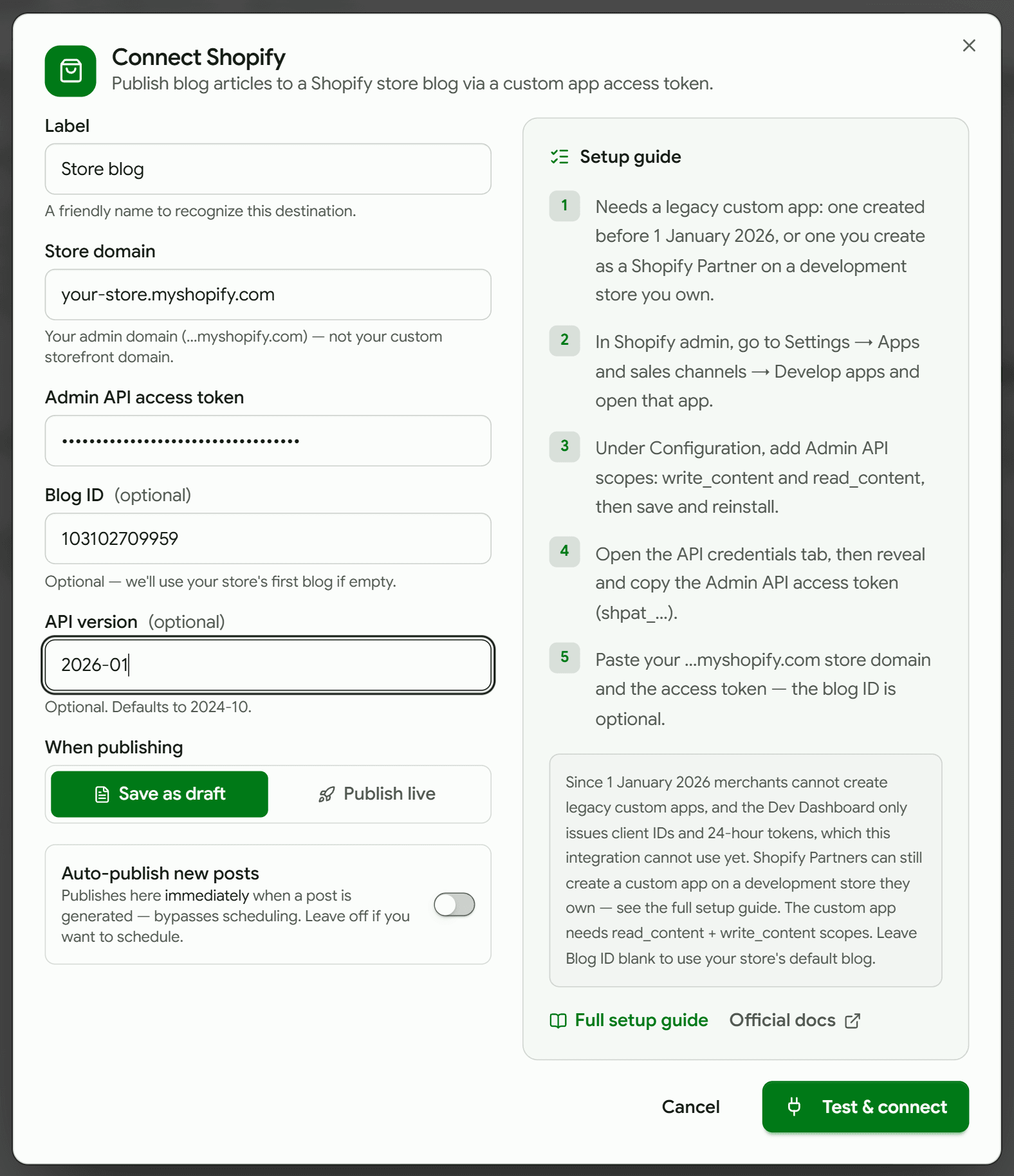
    Paste the store domain and the access token. Leave Blog ID and API version empty unless you need a specific blog or version. Keep “When publishing” on Save as draft for the first run, so nothing goes public before you have seen a post arrive.

    DraftRank's Connect Shopify dialog filled in with a label, a .myshopify.com store domain, a masked access token, a blog ID and an API version, with Save as draft selected and the inline setup guide beside it.

    If you do fill in Blog ID, it must be the id of a BLOG. Opening an article in the Shopify admin puts that article's id in the URL, and pasting it produces a destination that connects and then fails on every publish.

  7. 7

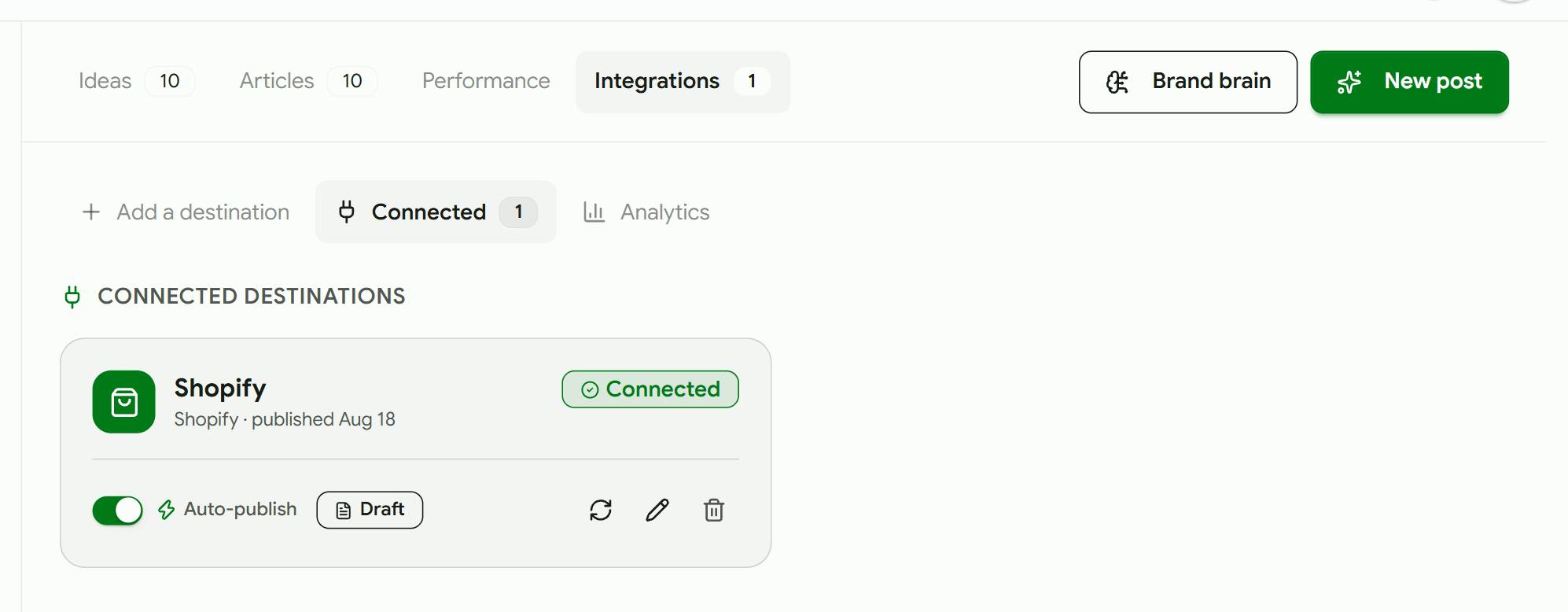
    Confirm the destination shows Connected

    The destination moves to the Connected tab with a green Connected badge. From here you can re-test it at any time, switch between draft and live, or turn on auto-publish so every newly generated post goes out immediately.

    A connected Shopify destination in DraftRank showing a green Connected badge, an auto-publish toggle and a Draft badge.
  8. 8

    Publish an article and check it in Shopify

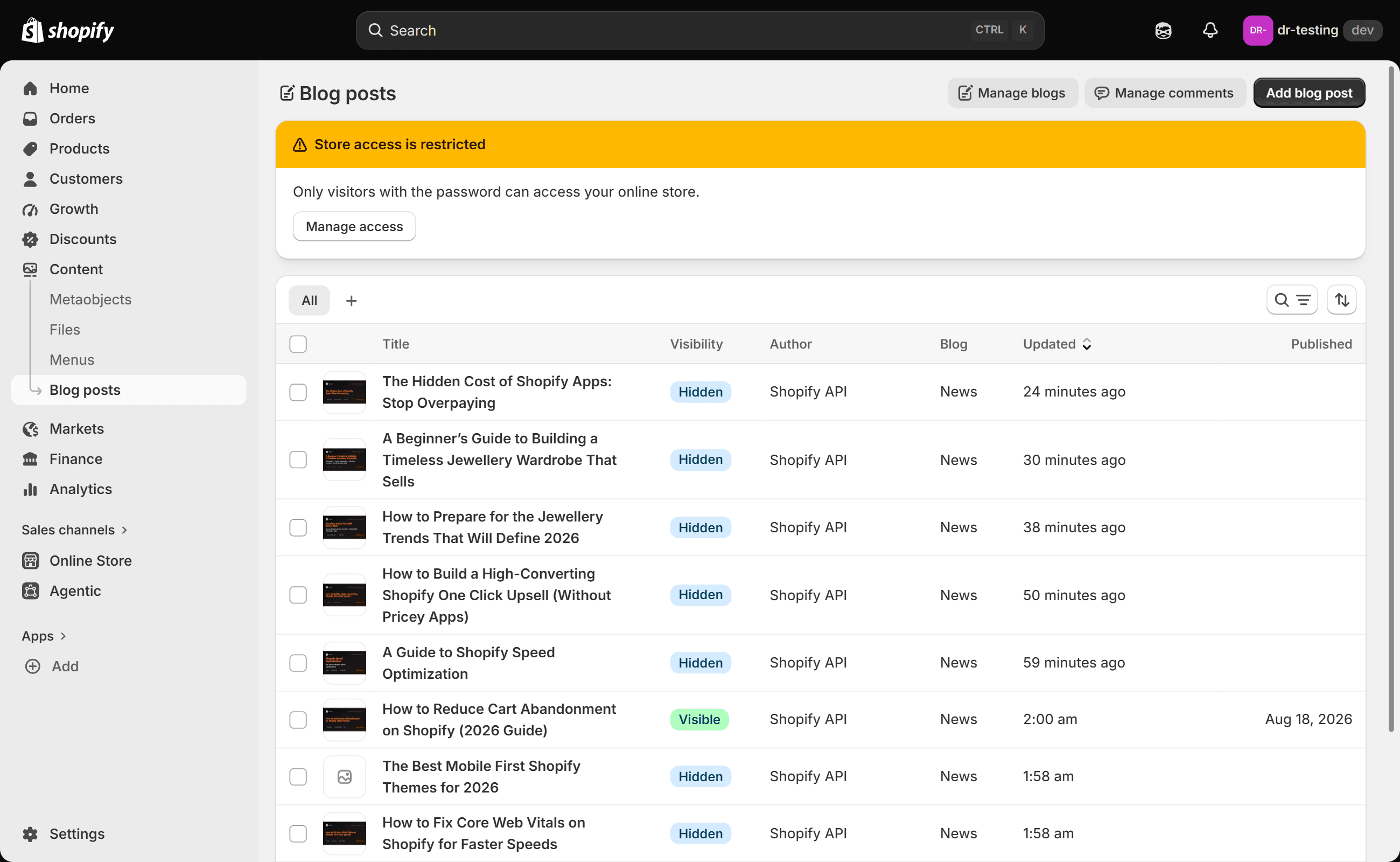
    Open an article in DraftRank and press Publish. In the Shopify admin the article appears under Content → Blog posts, with its cover image, the body, and the category and tags filled in. A post sent as a draft shows Hidden; one sent live shows Visible and carries a published date.

    Shopify's Blog posts list showing several DraftRank articles in the News blog with their cover thumbnails, most marked Hidden and one marked Visible with a published date.

    Publishing the same article again updates that same Shopify post rather than adding a second one, so switching it between draft and live flips this row between Hidden and Visible instead of leaving a duplicate behind.

What goes in each field

These labels match the connect dialog exactly, so you can read this next to the form.

FieldWhat to enterExample
Store domainYour Shopify admin domain. Not your custom storefront domain — the Admin API only answers on the myshopify.com address.your-store.myshopify.com
Admin API access tokenThe long-lived token revealed once by your custom app.shpat_…
Blog IDoptionalWhich blog to publish into, when the store has more than one. Left blank, DraftRank uses the first blog it finds. It is a blog’s numeric id — shown in the admin URL under Online Store → Blog posts — not a blog post’s.103102709959
API versionoptionalThe Admin API version to call. Left blank it defaults to 2024-10; requests to a version Shopify no longer supports are served as the oldest supported version rather than rejected.2024-10

If something goes wrong

Find the message DraftRank showed you. Each one has a specific cause.

My custom app only shows a client ID and secret, no shpat_ token

Why: The app was created in Shopify's Dev Dashboard, which replaced legacy custom apps on 1 January 2026 and issues 24-hour tokens through the client credentials grant instead of a permanent one.

Fix: Those credentials cannot become a permanent token. If you own the store as a Shopify Partner, create the app from the store’s own Settings → Apps and sales channels → Develop apps screen rather than the Dev Dashboard. Otherwise, use the Custom Website webhook.

Authentication failed … Double-check your credentials.

Why: The token is wrong, or the custom app has been uninstalled from the store.

Fix: Confirm the app is still installed under Settings → Apps and sales channels, then reveal and copy the access token again.

Shopify connection: Authentication failed (…)

Why: The app is missing read_content or write_content, or the token belongs to an app that is no longer installed.

Fix: Add both scopes under Configuration, save, and reinstall the app — scope changes only take effect after reinstalling, and the token changes when you do.

Shopify: this store has no blog with ID … Use one of these, or clear the Blog ID to use the first: …

Why: The Blog ID box holds a number that is not a blog in this store — most often the id of a blog POST, copied from the admin URL while an article was open, or an id from a different store.

Fix: Clear the Blog ID so DraftRank uses the store's first blog, or copy one of the ids the error lists — those are the real blogs on the store.

Shopify: handle has already been taken

Why: Another article in the same blog already uses this post's URL handle. Shopify requires handles to be unique per blog. It happens when the same post is sent to two Shopify destinations pointing at one blog, or when an article DraftRank created was replaced by hand in Shopify.

Fix: Point each Shopify destination at a different blog, or delete the clashing article in Shopify. Re-publishing a post DraftRank itself published is fine — that updates the existing article rather than creating another.

Connected — but this store has no blog yet.

Why: The store has no blog for articles to go into.

Fix: In the Shopify admin, go to Online Store → Blog posts and create a blog, then run the connection test again.

Could not reach your-store.com.

Why: You entered your customer-facing custom domain rather than the admin domain.

Fix: Use the .myshopify.com address. You can find it under Settings → Domains, listed as your store's permanent domain.

Shopify FAQ

Why does DraftRank need a permanent token when Shopify is moving away from them?

Because publishing happens on a schedule with no one present to complete a sign-in. Shopify is phasing out non-expiring tokens for security reasons, and supporting the client credentials grant — which mints a fresh 24-hour token per run — is the change that will restore setup for stores without a legacy app.

Which blog do articles go to?

The first blog on the store, unless you set a Blog ID. Most stores have exactly one, called News by default. If you do set a Blog ID, it must be a blog's id — not a blog post's — and the connection test checks it for you and names the store's real blogs if it does not match.

What happens if I publish the same post twice?

DraftRank updates the article it created the first time rather than adding a second copy, so re-publishing after an edit is safe. That also means switching a post between Save as draft and Publish live flips the same Shopify article between hidden and visible instead of leaving a stale duplicate behind. If the article has since been deleted in Shopify, DraftRank notices and creates a fresh one.

Do cover images work?

Yes, as long as the cover is a raster image. Shopify rejects SVGs for article images, so an SVG cover is skipped and the article publishes without one.

Should I change the API version?

Only if you need behaviour from a specific version. Shopify supports each version for at least twelve months and serves requests for older versions as the oldest supported version, so leaving it blank stays safe.

Shopify documentation

Ready to connect Shopify?

Open your site in DraftRank, go to the Integrations tab, and follow the steps above.

Open DraftRank