DraftRank
All integration guides
Integration guide

How to connect Blogger

Blogger is the only destination with nothing to copy and paste. You approve DraftRank with Google, pick which blog to publish to, and you are done — the connection is an OAuth grant rather than a key you manage.

About 3 minutes Easy

Before you start

  • A Google account.
  • A Blogger blog on that same account. If you do not have one yet, step 1 covers it — a Google account does not come with a blog.
Step by step

  1. 1

    Make sure the Google account owns a blog

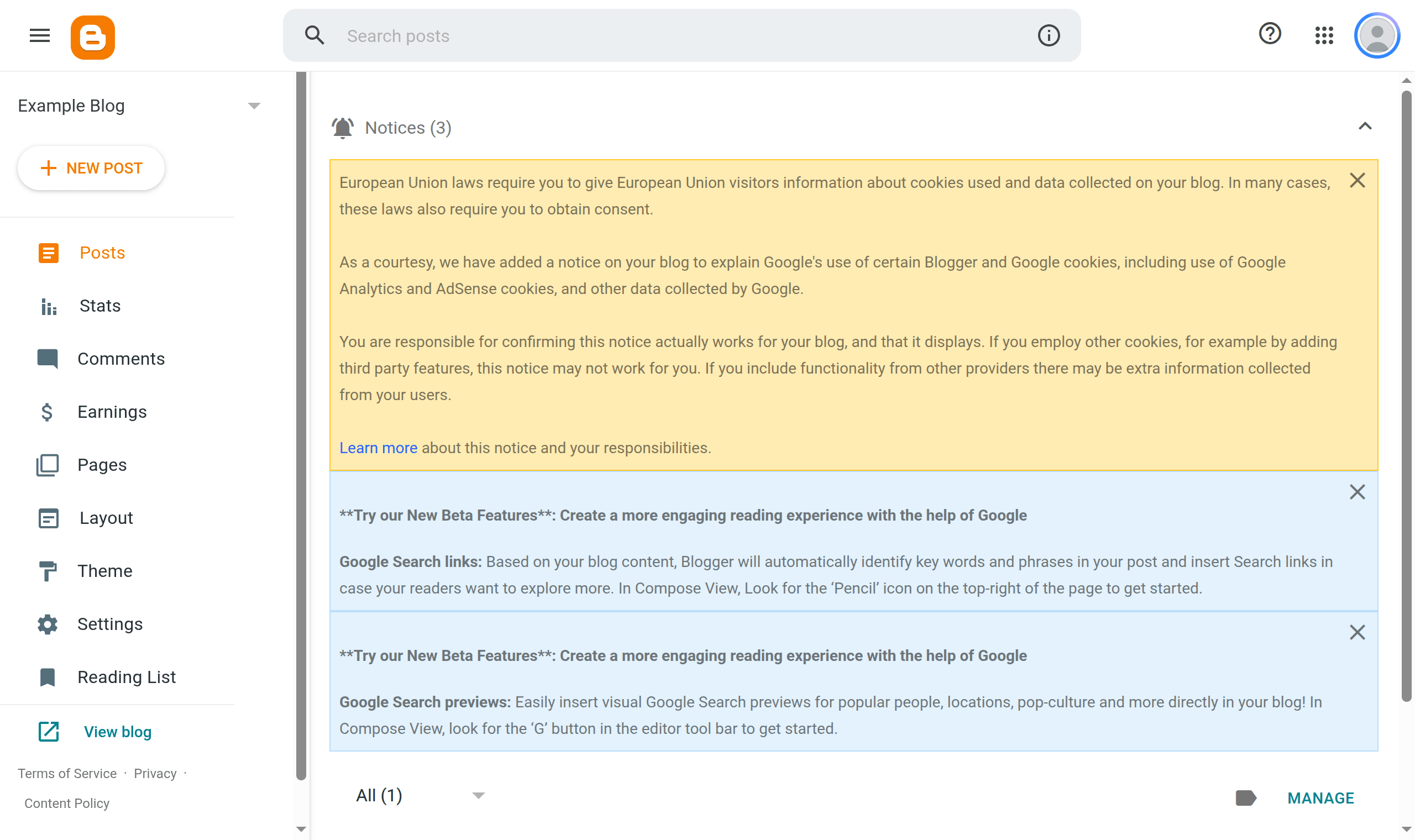
    Sign in at blogger.com with the Google account you intend to approve. If the top-left shows a blog name with a dropdown arrow — and a NEW POST button below it — you already have a blog and can go to step 2. If it says “Select a blog” with nothing to select, click CREATE YOUR BLOG (or Create Blog in the left sidebar), give it a title, choose an available .blogspot.com address and finish.

    blogger.com The Blogger dashboard with a blog selected, showing the blog name in the top-left and a NEW POST button.

    This is the single most common reason the connection fails. A Google account does not come with a blog until you create one, and DraftRank will correctly report that the account has none.

  2. 2

    Check which Google account you are in

    Click the profile picture in the top-right of Blogger and note the address. That is the account you must approve in DraftRank. If you are signed in to several Google accounts, Blogger may have opened under a different one than you expect.

    The account that owns the blog does not have to be your DraftRank login. An agency publishing to a client's blog approves the client's account.

  3. 3

    Open the destination list in DraftRank

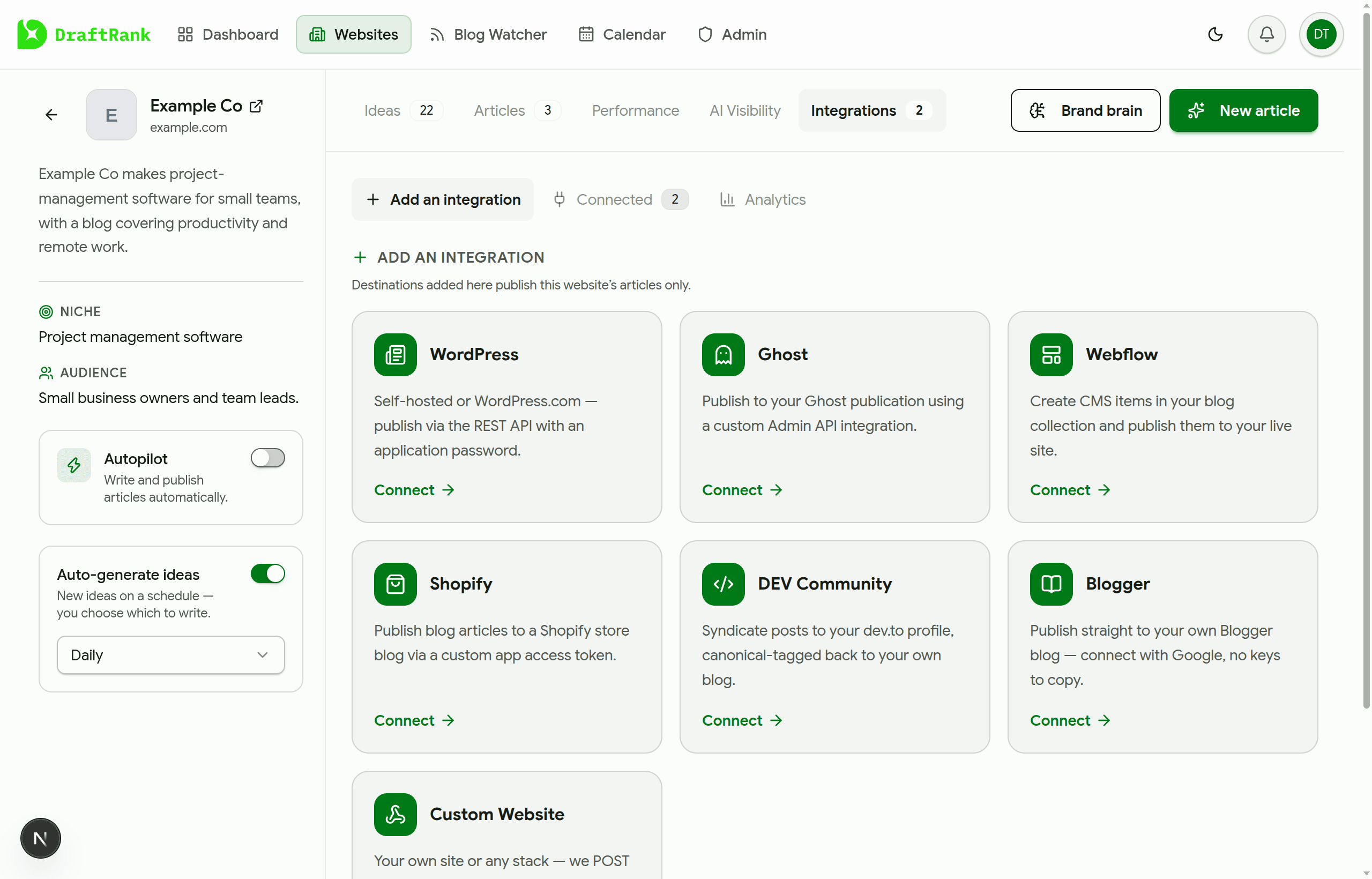
    In DraftRank, open the site you want to publish from and go to the Integrations tab. “Add an integration” lists every platform; Blogger is the one that says “connect with Google, no keys to copy”.

    The DraftRank Integrations tab with the Blogger card among the available destinations.
  4. 4

    Click Connect

    There is no form to fill in. Connect sends you straight to Google — DraftRank never sees or stores a password, and there is no API key to generate, paste or rotate later.

  5. 5

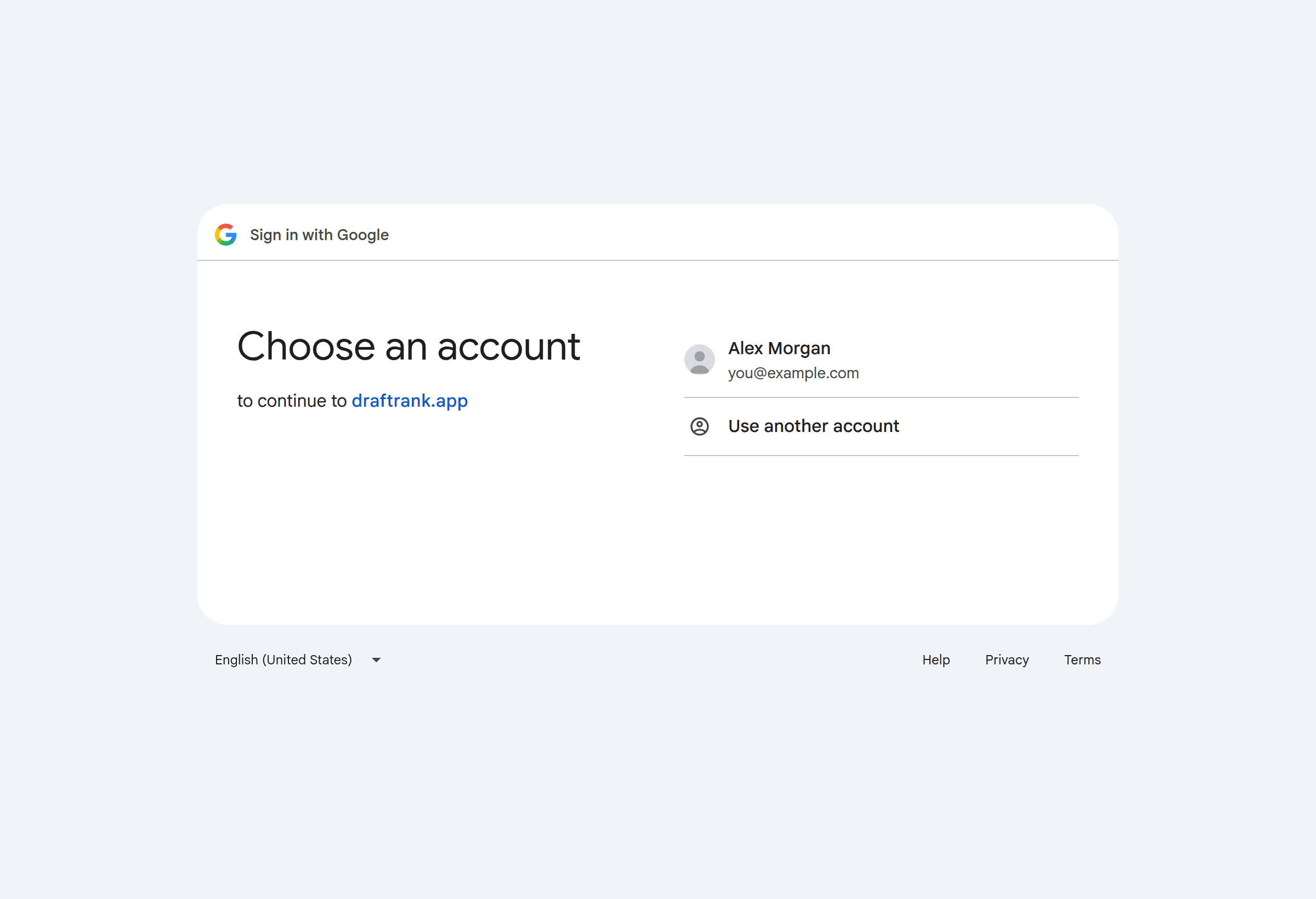
    Choose the Google account from step 2

    Google asks which account to use. Pick the one that owns the blog. Choosing the wrong account is the second most common cause of a failed connection — it succeeds, then reports that the account has no blogs, because that account genuinely has none.

    Google's account chooser asking which account to continue with.
  6. 6

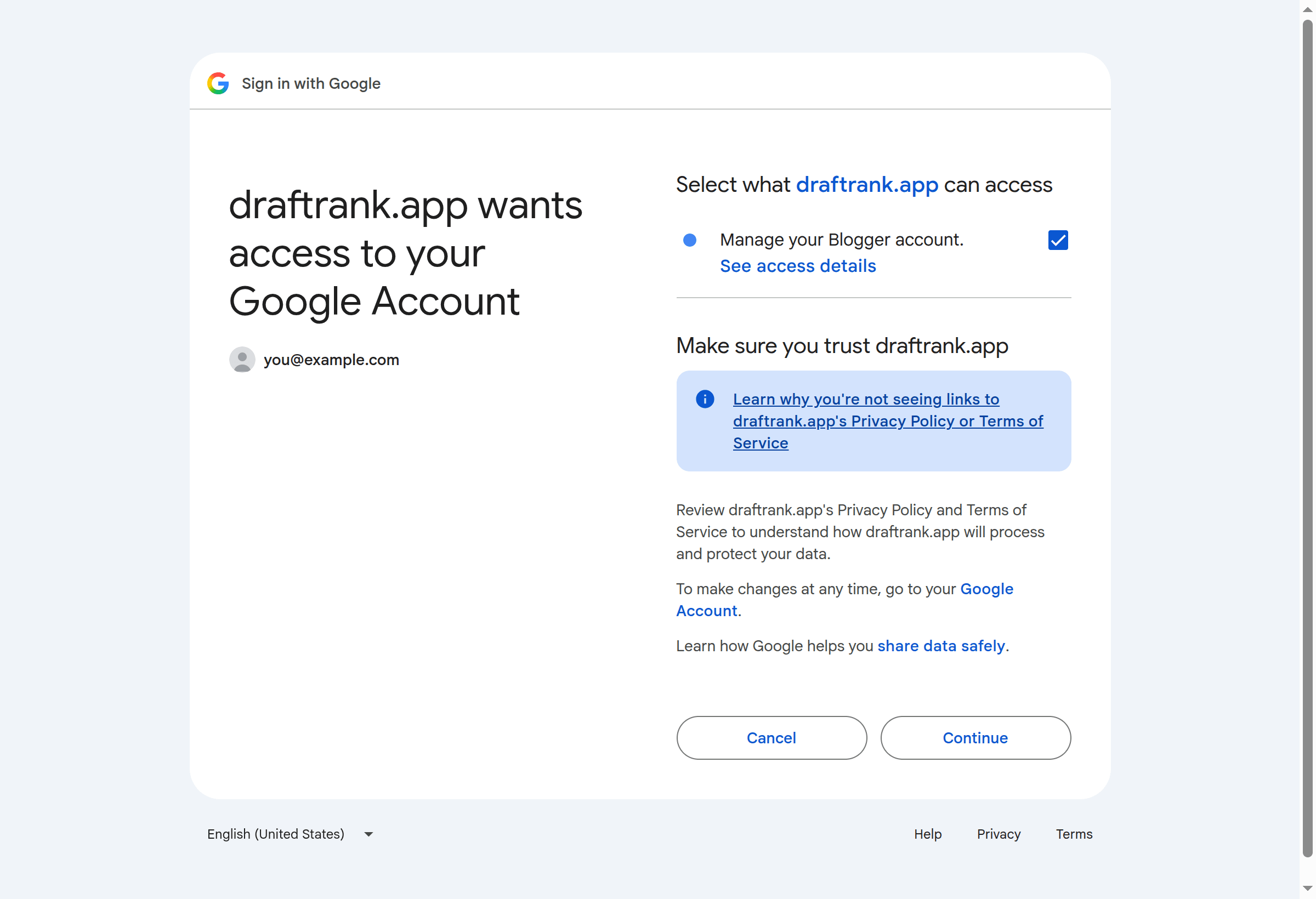
    Leave the Blogger permission ticked

    Google shows a tick box for “Manage your Blogger account”. It must stay ticked — it is what allows DraftRank to create posts for you. Pressing Continue with it unticked returns you to DraftRank with an error, because a connection without that permission could never publish anything.

    Google's consent screen with the “Manage your Blogger account” permission ticked.

    Google calls this granular consent. Approving without ticking the box looks like success on Google's screen but grants nothing, so DraftRank refuses the connection rather than storing one that cannot work.

  7. 7

    Pick which blog to publish to

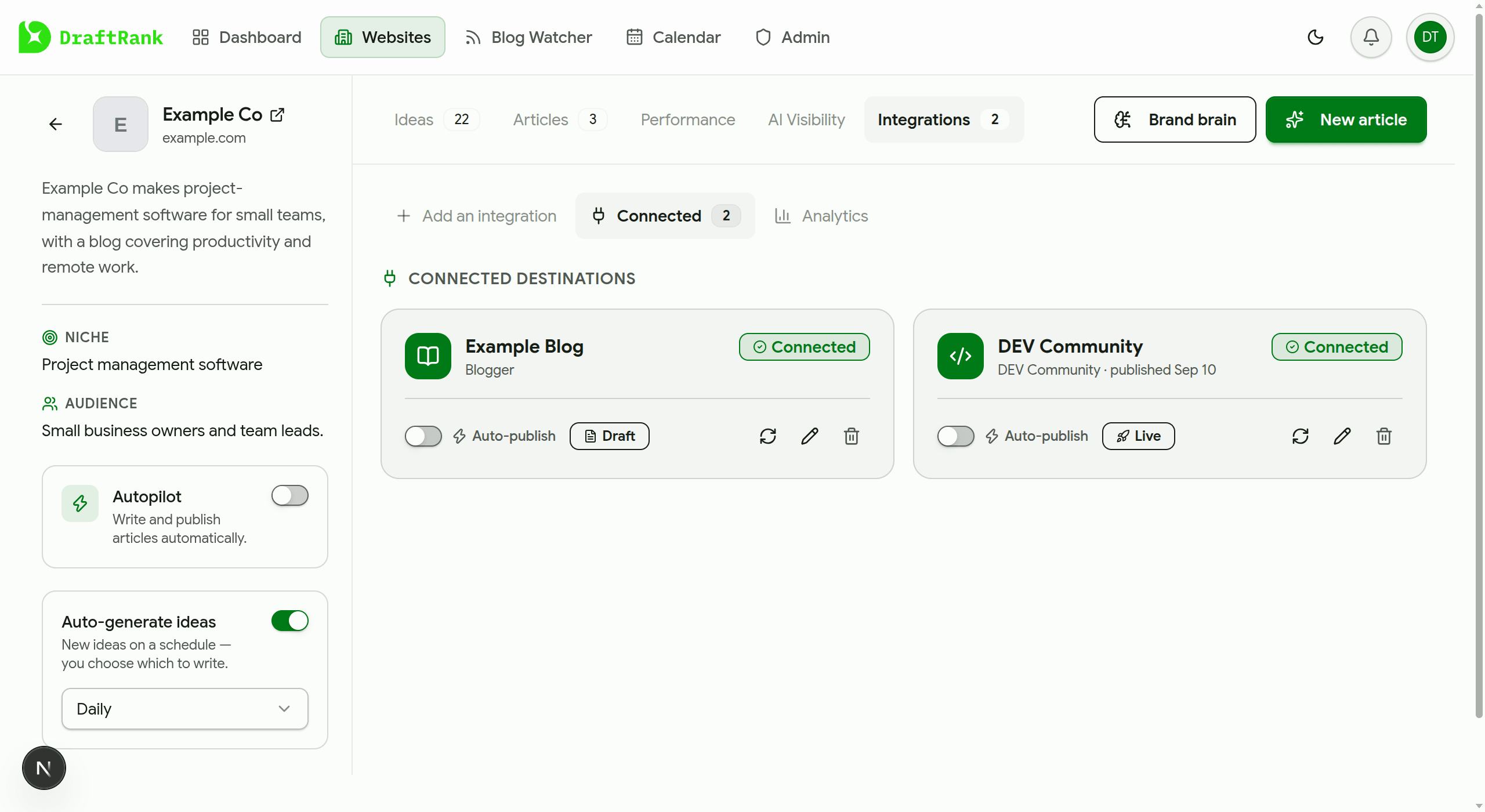
    If the account owns exactly one blog, DraftRank selects it and you are connected — no picker, no extra click. If it owns several, a dialog opens so you can choose. The destination then appears under Connected with the blog's name, and you can change the blog later with the pencil icon.

    The Connected destinations view in DraftRank showing the Blogger destination marked Connected.
  8. 8

    Publish a post

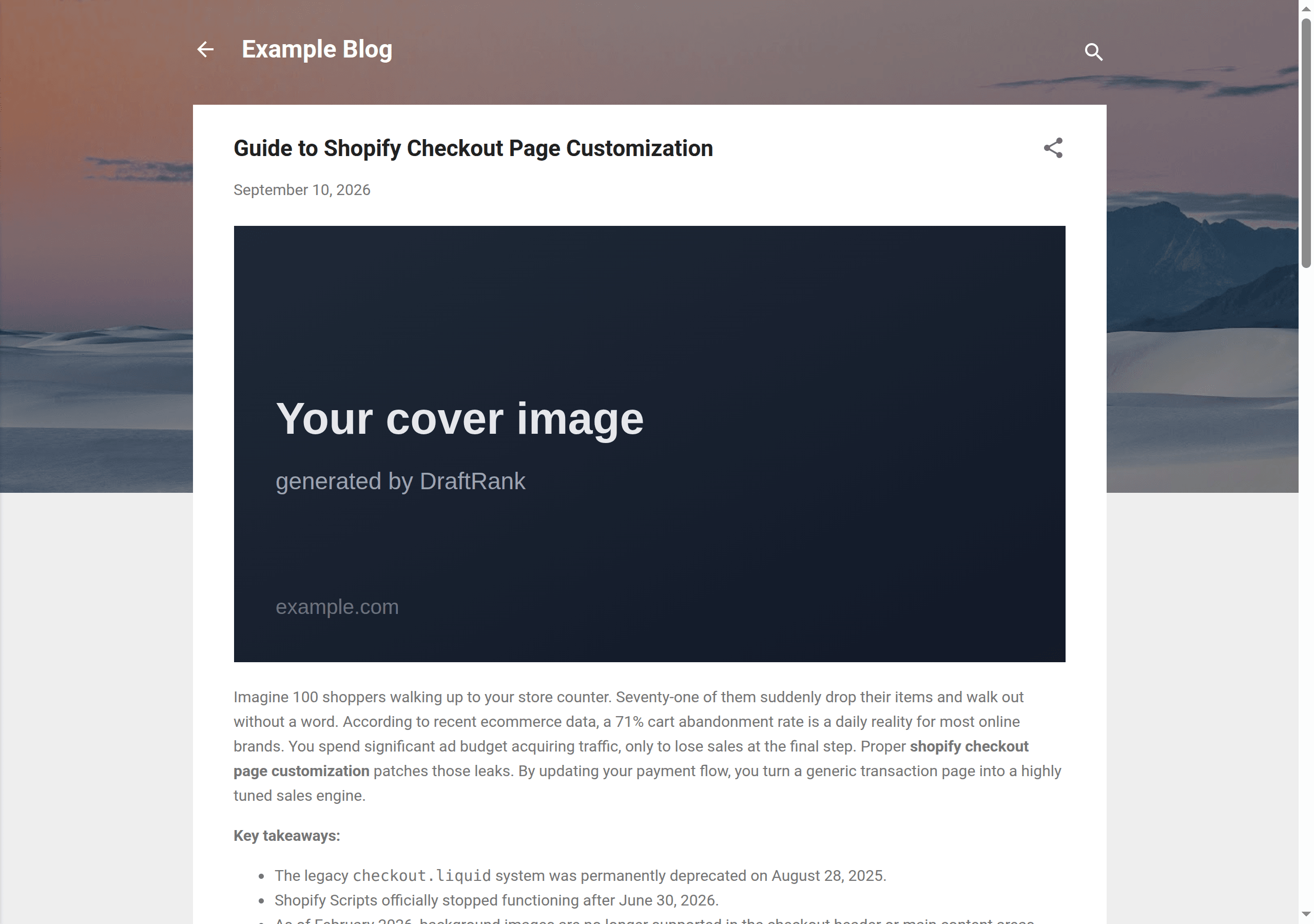
    Open a finished article and publish it to the Blogger destination. Leave the destination on draft to review the post in Blogger first, then re-publish as live — DraftRank promotes the same post rather than creating a second one. Your cover image is added as the first image in the body, which is what Blogger uses for the post thumbnail.

    A DraftRank article published on a Blogger blog, with its cover image at the top of the post.

What goes in each field

These labels match the connect dialog exactly, so you can read this next to the form.

FieldWhat to enterExample
BlogWhich of the connected Google account's blogs to publish to. Chosen from a list rather than typed — DraftRank reads it from your account, so there is no blog ID to look up.yourblog.blogspot.com

If something goes wrong

Find the message DraftRank showed you. Each one has a specific cause.

No blogs on the Google account you approved.

Why: That Google account does not own a Blogger blog. Having a Google account is not the same as having a blog — one has to be created explicitly.

Fix: Create one at blogger.com as described in step 1, then connect again. If you are sure a blog exists, you almost certainly approved a different Google account than the one that owns it: click Connect again and switch accounts on Google's screen.

Tick the “Manage your Blogger account” box on Google's screen so DraftRank can publish for you.

Why: Consent completed without the Blogger permission, so the grant cannot create posts.

Fix: Click Connect again and make sure the permission stays ticked before pressing Continue.

Google didn't return a lasting credential.

Why: Google issues the long-lived half of a grant only on a genuinely fresh authorisation. An earlier grant for DraftRank was still active on the account.

Fix: Remove DraftRank from your Google account's third-party access list at myaccount.google.com/permissions, then connect again.

This Google account does not have permission to post to that blog.

Why: The selected blog is one the account can read but not write to — for example a blog you were added to as a reader.

Fix: Edit the destination and pick a blog you author or administer, or ask the blog's owner to give this account author access.

That Blogger blog no longer exists. Pick another one.

Why: The blog was deleted in Blogger after the destination was set up.

Fix: Edit the destination and choose a different blog, or delete the destination if that blog is gone for good.

Blogger FAQ

Do I need an API key?

No. Blogger is connected with Google sign-in, so there is nothing to generate, copy, or rotate. Disconnecting the destination revokes DraftRank's access at Google as well as removing it here.

Does re-publishing create a second post?

No. DraftRank updates the post it already created, using the ID Blogger gave it. That is also how a post published as a draft goes live later — the same post is promoted rather than duplicated.

Will this compete with my own site for rankings?

Blogger is your own site, so the post published there is the original. DraftRank does not add a canonical tag pointing somewhere else, unlike a syndication destination such as DEV Community.

Does my cover image come across?

Yes. Blogger has no separate cover-image field — it takes the post thumbnail from the first image in the body — so DraftRank puts your cover there. SVG covers are skipped, because Blogger does not render them reliably as thumbnails.

Why does the featured toggle do nothing?

Blogger has no featured or sticky post concept, so there is nothing for DraftRank to set. The toggle is ignored for this destination rather than quietly approximated with something else.

Can I connect a blog owned by someone else?

Yes, if that account has given you author or admin access to it. Approve with the Google account that holds that access — it does not need to be your DraftRank login.

Blogger documentation

Ready to connect Blogger?

Open your site in DraftRank, go to the Integrations tab, and follow the steps above.

Open DraftRank