DraftRank
All integration guides
Integration guide

How to connect DEV Community

dev.to is a syndication destination, not your own site: the article lives on someone else's domain. That is worth doing for the audience, and dangerous for your SEO if you do it naively — a duplicate on a high-authority domain can outrank the original. DraftRank sets the canonical URL on every dev.to article back to your own copy, so the reach is yours and the ranking stays on your site.

About 3 minutes Easy

Before you start

  • A dev.to account.
  • Ideally, another destination already connected for the same site — DraftRank canonical-tags each dev.to article to the copy on your own blog, so publish there first.
Step by step

  1. 1

    Open your DEV account settings

    Sign in to dev.to, click your avatar, and choose Settings. Then open the Extensions tab.

    Open dev.to Extensions settings
  2. 2

    Generate an API key

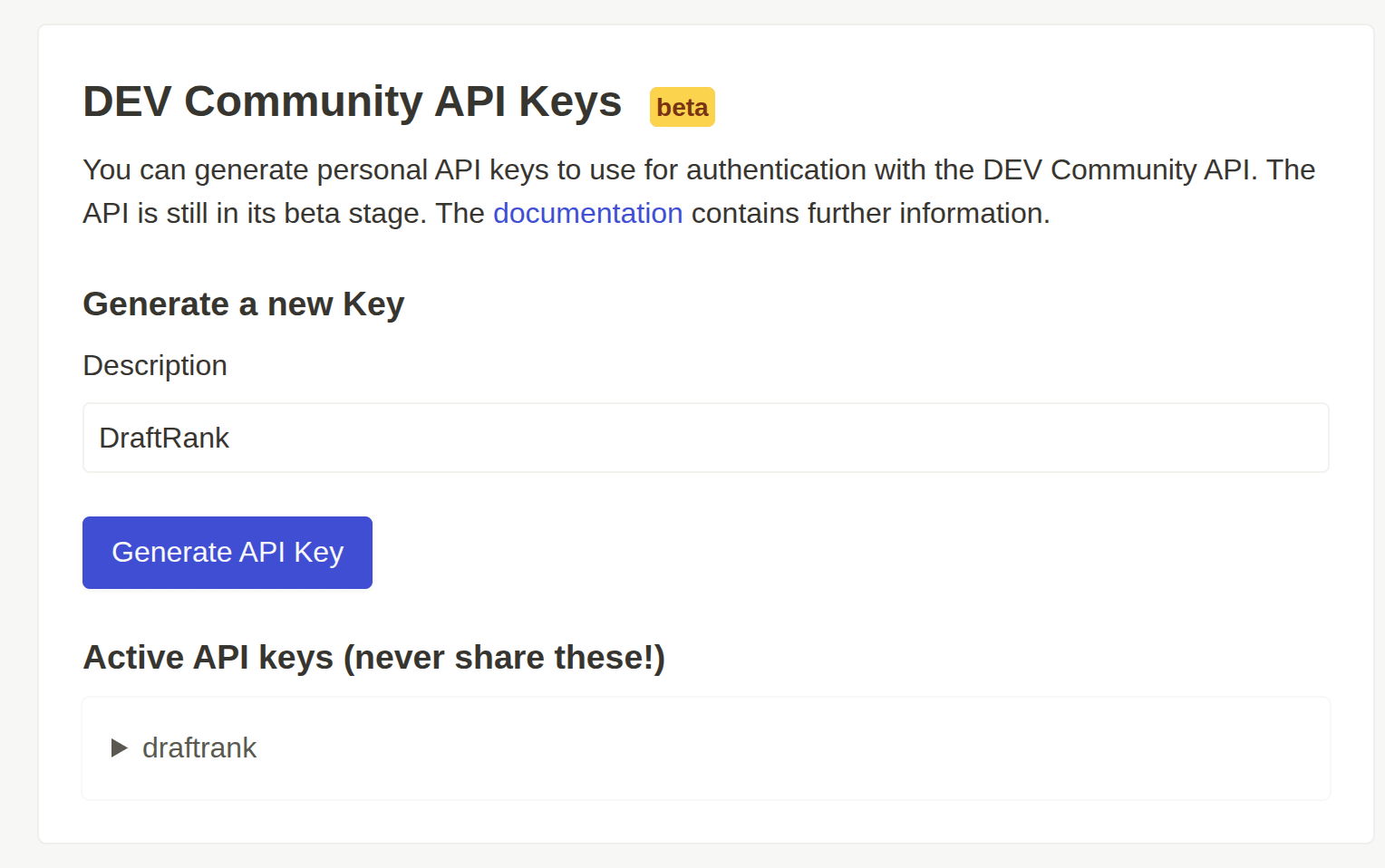
    Scroll to “DEV Community API Keys”. Type a description so you can recognise the key later, then click “Generate API Key”.

    DraftRank
    The DEV Community API Keys panel in dev.to settings, with DraftRank typed into the Description field above the Generate API Key button.
  3. 3

    Copy the key

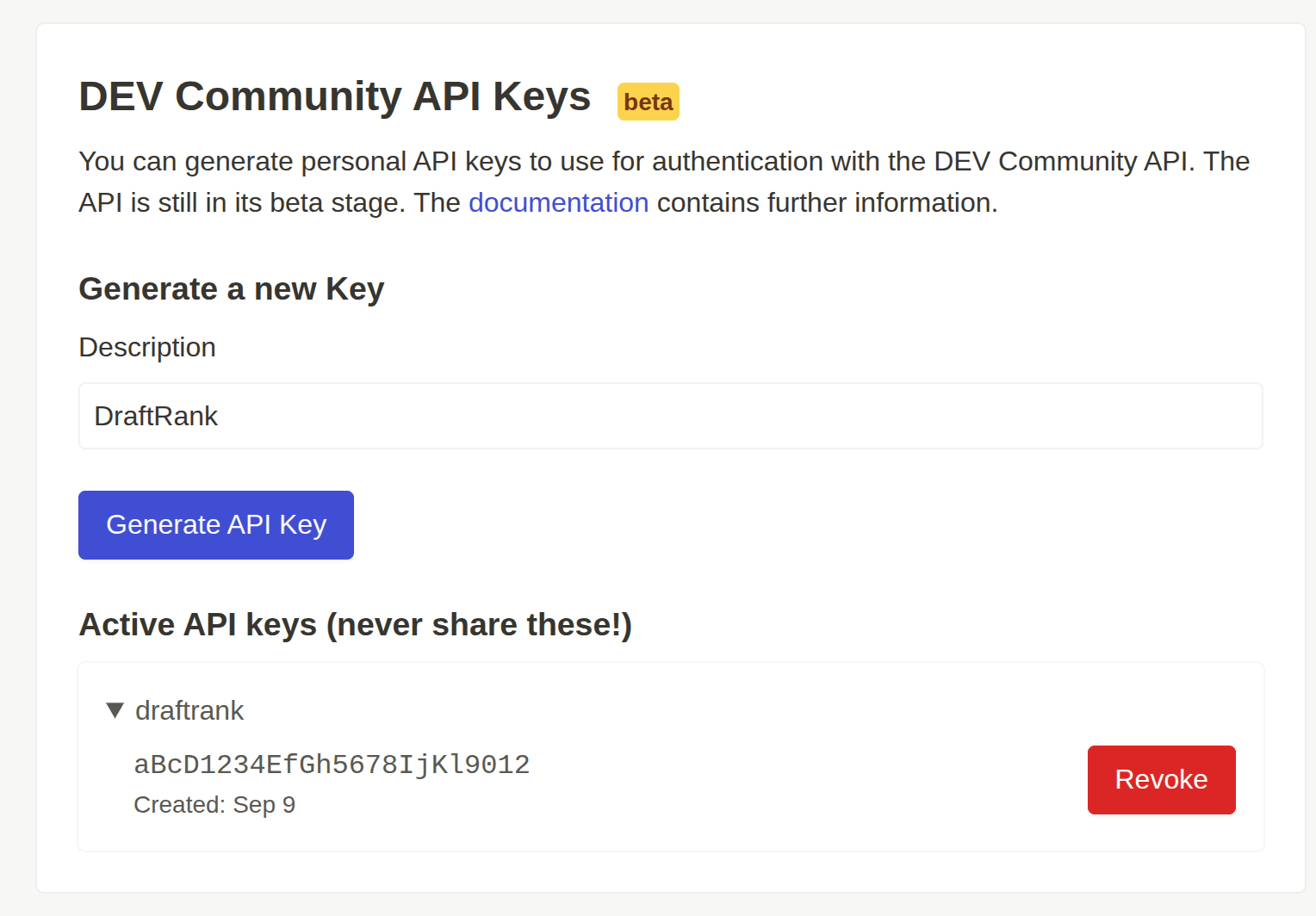
    The new key appears under “Active API keys”. Click its description to expand the row and copy the value. Unlike most platforms, dev.to keeps the key readable here afterwards — so if you lose it you can come back for it rather than having to generate a new one.

    An expanded row under Active API keys in dev.to settings showing a key value, its creation date and a red Revoke button. The key shown is a dummy value.

    The key can create, edit and publish articles on your account, and dev.to displays it in full on this page — so treat this screen as sensitive and never screenshot or share it. DraftRank stores the key encrypted and never returns it to your browser. Revoke removes it immediately.

  4. 4

    Publish to your own site first

    Connect the destination for your own blog (WordPress, Ghost, Webflow, Shopify, Blogger or a webhook) and publish the post there before sending it to dev.to. DraftRank then uses that live URL as the canonical for the dev.to copy automatically. If you cannot, set a canonical URL prefix below and DraftRank builds the canonical from it and the post slug.

  5. 5

    Pick DEV Community in DraftRank

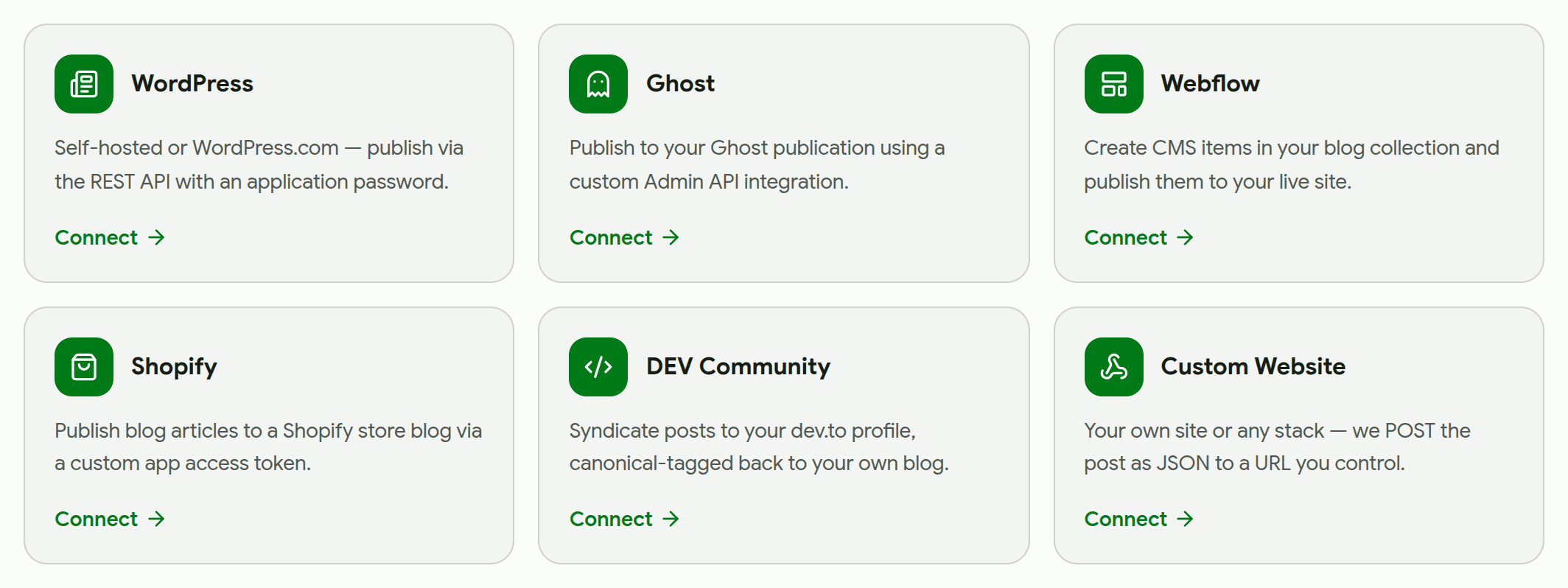
    Open the site you want to syndicate from, go to the Integrations tab, and choose DEV Community from “Add an integration”.

    Open your sites in DraftRank DraftRank's Add an integration screen showing cards for WordPress, Ghost, Webflow, Shopify, DEV Community and Custom Website.
  6. 6

    Paste the key and press Test & connect

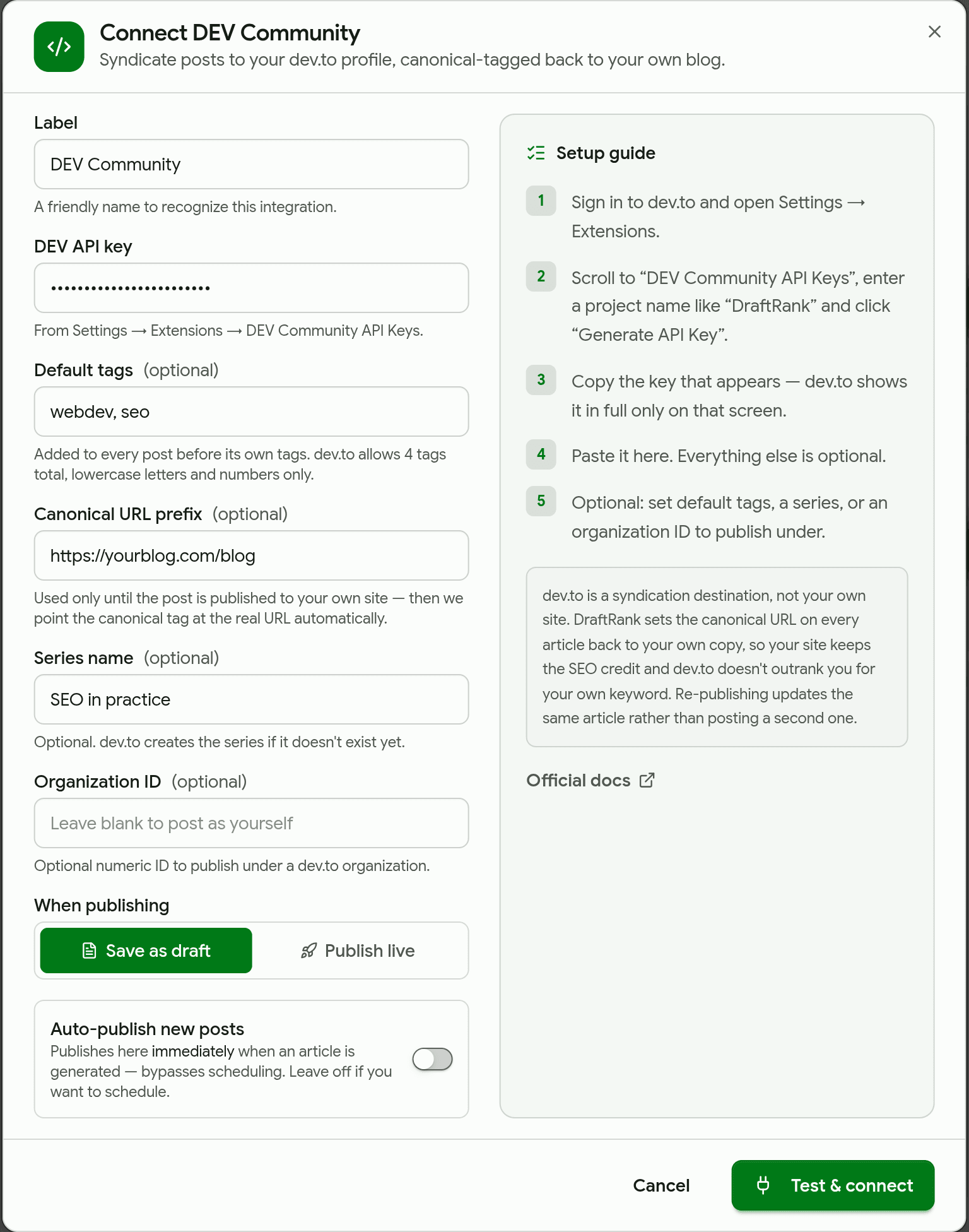
    The API key is the only required field. Leave “Save as draft” selected until you have seen an article arrive correctly. DraftRank lists your own articles through the API to confirm the key works before saving anything.

    DraftRank's Connect DEV Community dialog with the API key masked, default tags, a canonical URL prefix and a series name filled in, and Save as draft selected.

    Auto-publish is off by default and should stay off until you trust the output — it sends every newly generated article to dev.to immediately, skipping the schedule.

  7. 7

    Check the destination reports Connected

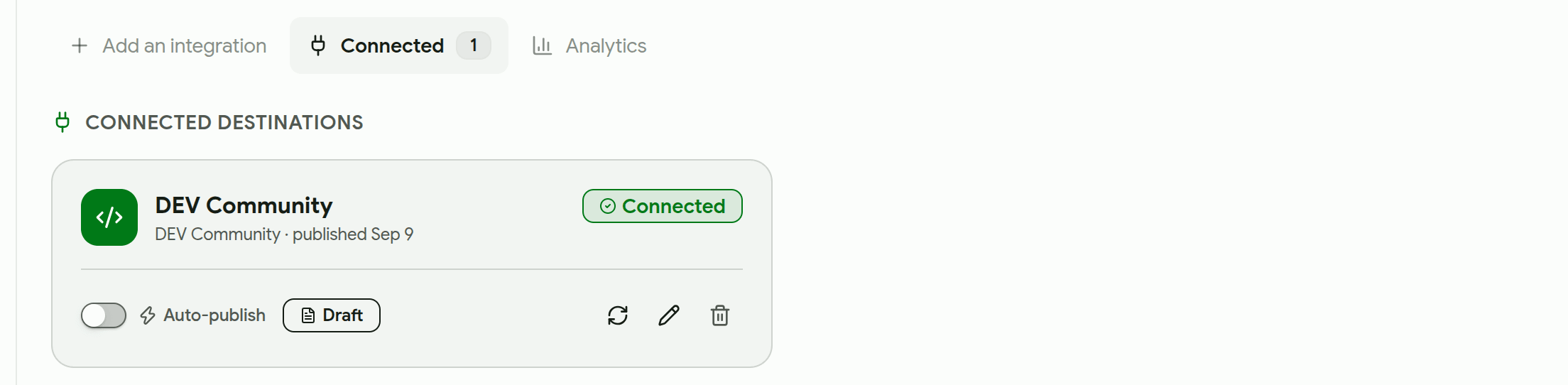
    A connected destination shows a Connected badge, the draft/live mode it will use, and an auto-publish toggle. Use “Test connection” any time to re-check the key.

    A connected DEV Community destination in DraftRank showing a Connected badge, an auto-publish toggle set to off, and a Draft badge.
  8. 8

    Send your first article as a draft

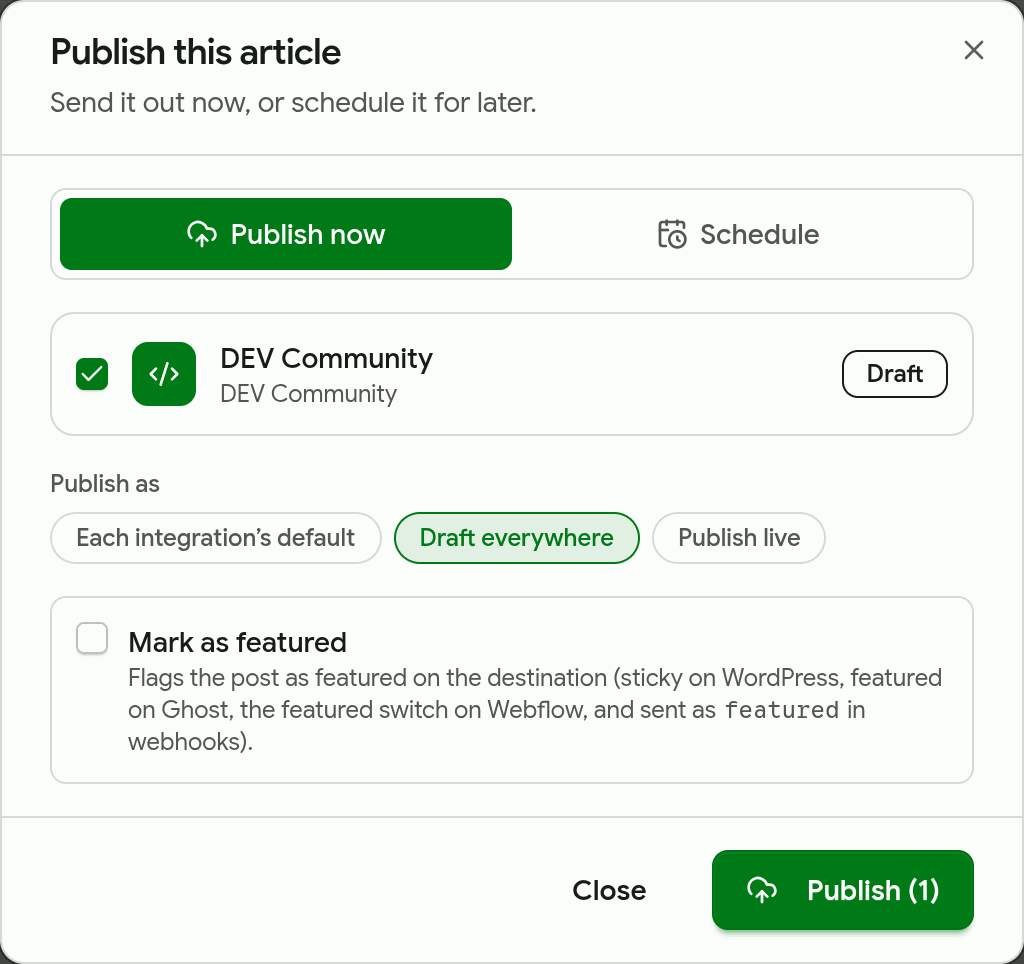
    Open a finished article, press Publish, tick DEV Community and choose “Draft everywhere”. The article is created on dev.to unpublished, so you can read it there before anyone else can. Re-publishing later updates that same article instead of posting a second one.

    DraftRank's Publish this article dialog with DEV Community ticked and Draft everywhere selected.

What goes in each field

These labels match the connect dialog exactly, so you can read this next to the form.

FieldWhat to enterExample
DEV API keyAuthorises DraftRank to create and update articles on your dev.to account.A 24-character key from Settings → Extensions
Default tagsoptionalAdded to every article ahead of the post's own tags. dev.to allows four tags, each at most 30 characters, and accepts only lowercase letters and numbers — so DraftRank lowercases them, strips punctuation, drops any that end up over 30 characters, and keeps the first four.webdev, seo
Canonical URL prefixoptionalA fallback only. Used to build the canonical URL when the post has not been published to your own site yet; once it has, DraftRank uses that real URL instead.https://yourblog.com/blog
Series nameoptionalGroups every article from this destination into a dev.to series. The series is created if it does not exist.SEO in practice
Organization IDoptionalPublishes under a dev.to organization instead of your personal profile. Numeric.1234

If something goes wrong

Find the message DraftRank showed you. Each one has a specific cause.

dev.to rejected your API key. Generate a new one under Settings → Extensions → DEV Community API Keys.

Why: The key is wrong, was revoked, or was copied with surrounding whitespace.

Fix: Open Settings → Extensions and expand the key under “Active API keys” — dev.to still shows it in full, so you can re-copy it rather than generating a new one. If it is missing, it was revoked: generate a fresh one and paste that.

dev.to is rate-limiting this account. Try again in N seconds.

Why: dev.to throttles article creation per account, and answers with a 429 and a Retry-After.

Fix: Wait the stated number of seconds and retry the publish from the post. If you are backfilling many posts at once, spread them out with a schedule rather than publishing them together.

dev.to: Validation failed: Name is too long (maximum is 30 characters)

Why: dev.to allows only letters and numbers in a tag, so DraftRank strips the spaces and punctuation out of each one — and that can push a long multi-word tag over dev.to's 30-character limit. dev.to rejects the whole article, not just that tag.

Fix: DraftRank drops any tag that would exceed 30 characters after stripping, so this should not reach you. If it does, shorten the Default tags field — “ecommerce conversion rate optimization” becomes a 35-character tag once the spaces come out.

dev.to: Canonical url has already been taken

Why: Another article — on dev.to, yours or anyone's — already claims that canonical URL.

Fix: Usually this means the same post was already syndicated to dev.to under a different destination. Check your dev.to dashboard for an existing copy and delete it, or remove the canonical prefix if it points at a page that is not this post.

My article published but the tags look different

Why: dev.to rewrites tags to lowercase alphanumeric slugs, so machine-learning becomes machinelearning.

Fix: Nothing to fix — DraftRank applies the same transformation before sending, so what you see on dev.to is what was sent. Choose single-word tags if the run-together form reads badly.

DEV Community FAQ

Will this hurt my own site's ranking?

That is the risk this integration is built around. Every article DraftRank sends carries a canonical URL pointing at your own copy, which is how search engines are told which version is the original. Publish to your own site first and the dev.to copy reinforces it rather than competing with it.

What if I publish to dev.to before my own site?

Then that first article carries only the canonical prefix you configured, or none at all. Publish the post to your own destination afterwards and re-publish to dev.to — DraftRank updates the same article in place and fills the canonical in.

Does re-publishing create a second article?

No. dev.to supports updating an article by ID, so DraftRank edits the one it already created. That is also how a post published as a draft goes live later.

Can I publish as a draft?

Yes. Set the destination to draft and articles arrive unpublished on dev.to for you to review, then publish from your dashboard or by re-publishing as live from DraftRank.

Does the cover image come across?

Yes, as the article's cover, provided it is not an SVG — dev.to does not render those as cover images, so DraftRank omits them rather than publishing a broken cover.

DEV Community documentation

Ready to connect DEV Community?

Open your site in DraftRank, go to the Integrations tab, and follow the steps above.

Open DraftRank